Every link, your choice.
A browser picker for the Mac that learns from one keypress.
You use one browser for work and another for everything else, and macOS keeps sending every link to the wrong one. Hoplink puts a small picker under your cursor instead — and after a few choices, stops asking.
How it works
Three things, and the third is the one nobody else does.
- Step 1
Click a link, anywhere
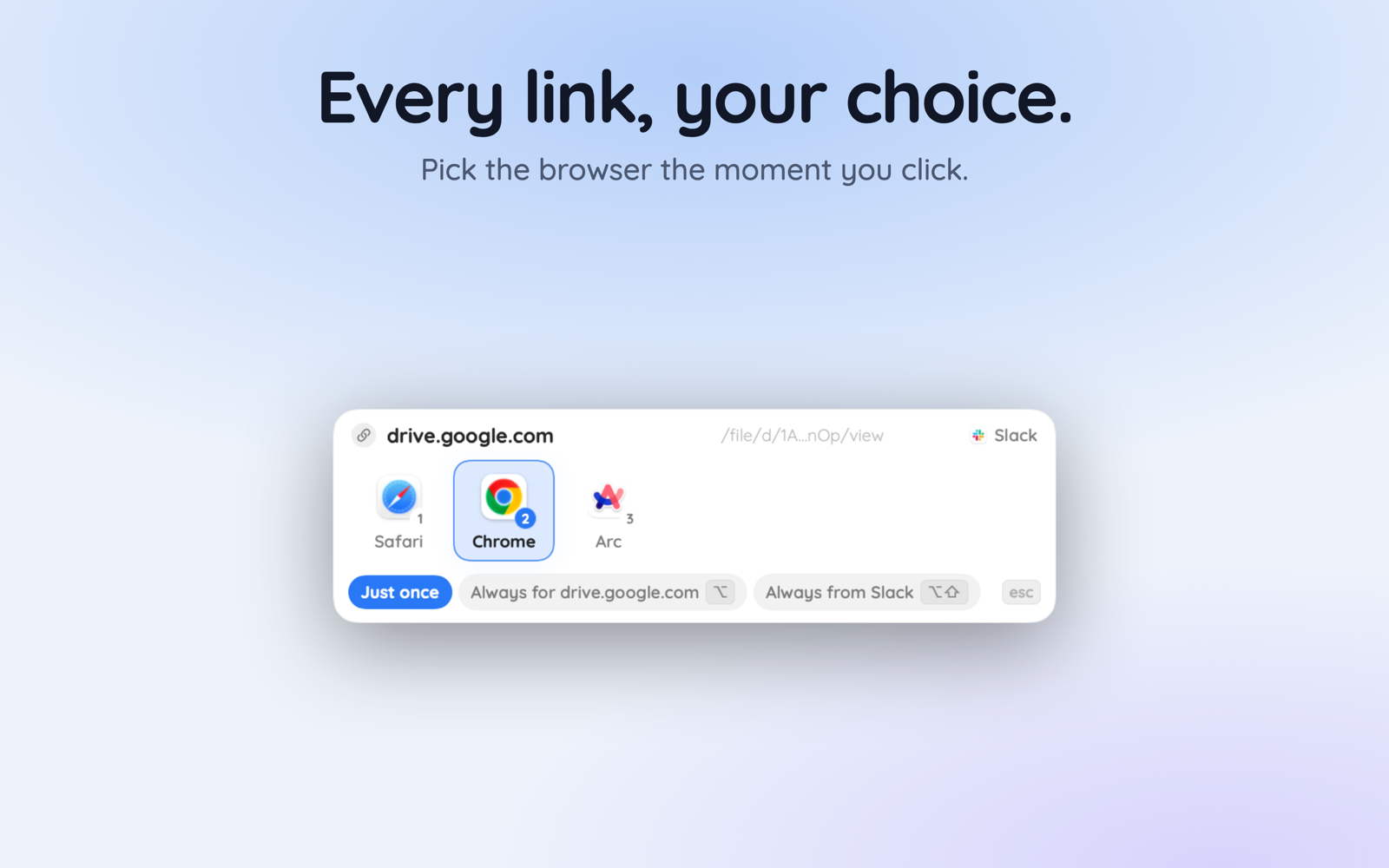
Slack, Mail, Teams, Outlook, Notes, Terminal. Hoplink is your default browser, so every link comes to it first and the picker appears under your cursor.
- Step 2
Hold Option to make it stick
Pick a browser and the link opens there once. Hold Option as you pick and that site goes there from then on. Option and Shift makes it a rule for the app the link came from.
- Step 3
Undo a wrong route
When a rule sends a link somewhere you did not want, a small toast says where it went. Command-Shift-Z moves it, and fixes the rule that got it wrong.
Teach it once, not in a settings screen
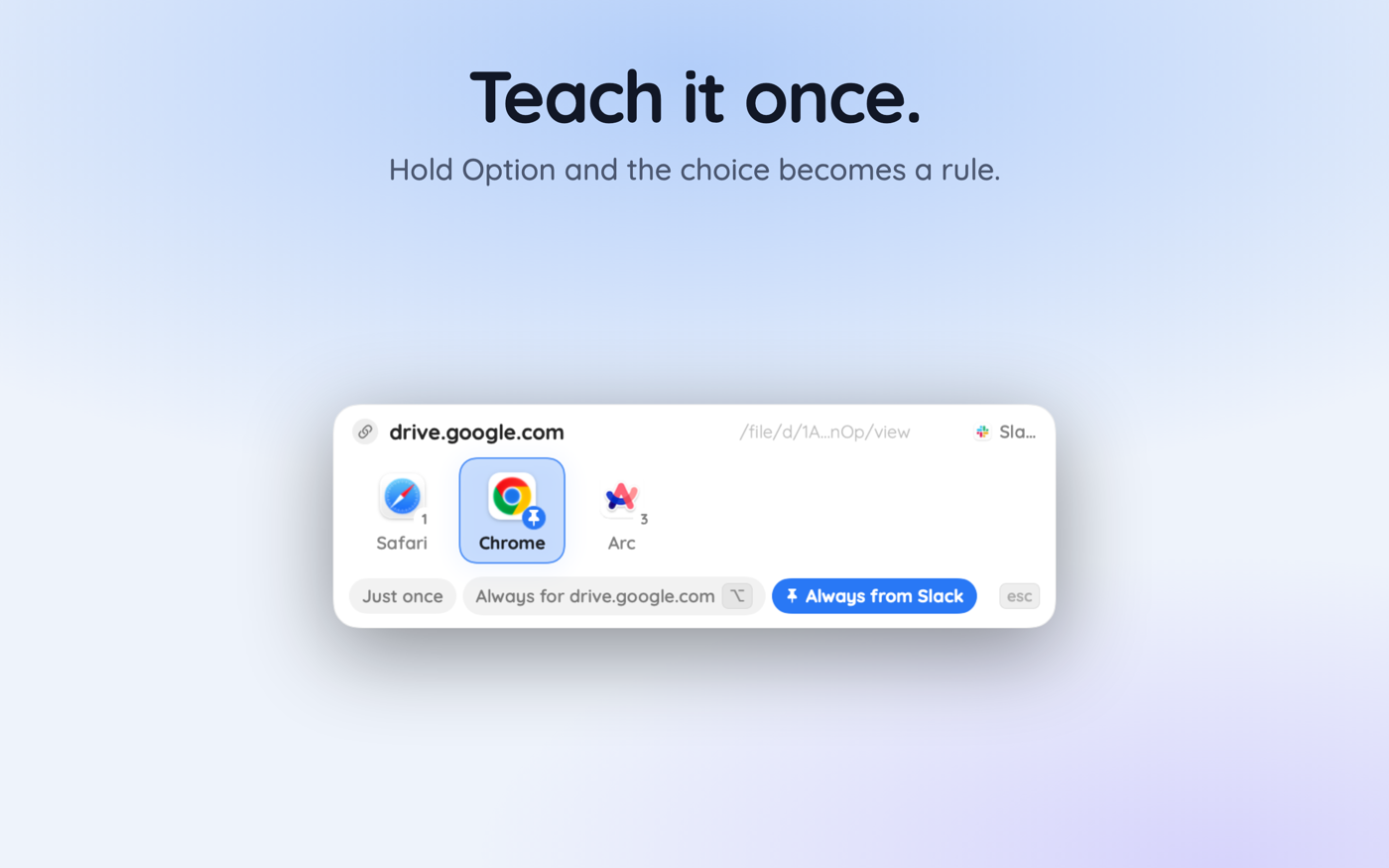
Most link routers make you open preferences and write a rule before they do anything useful. Hoplink builds them from the choices you were making anyway: hold ⌥ as you pick and that site is settled, or ⌥⇧ for every link from that app.
- Slack links to the work browser, everything else to your own
- A whole domain and its subdomains in one rule
- Reorder rules by dragging; the first match wins
- Turn a rule off without deleting it
Made to disappear
Instant
The picker is on screen before you finish letting go of the mouse. No spinner, no network call in the click path.
Rules that read like sentences
“Links from Slack go to Chrome.” “*.atlassian.net goes to Chrome.” Drag to reorder; first match wins.
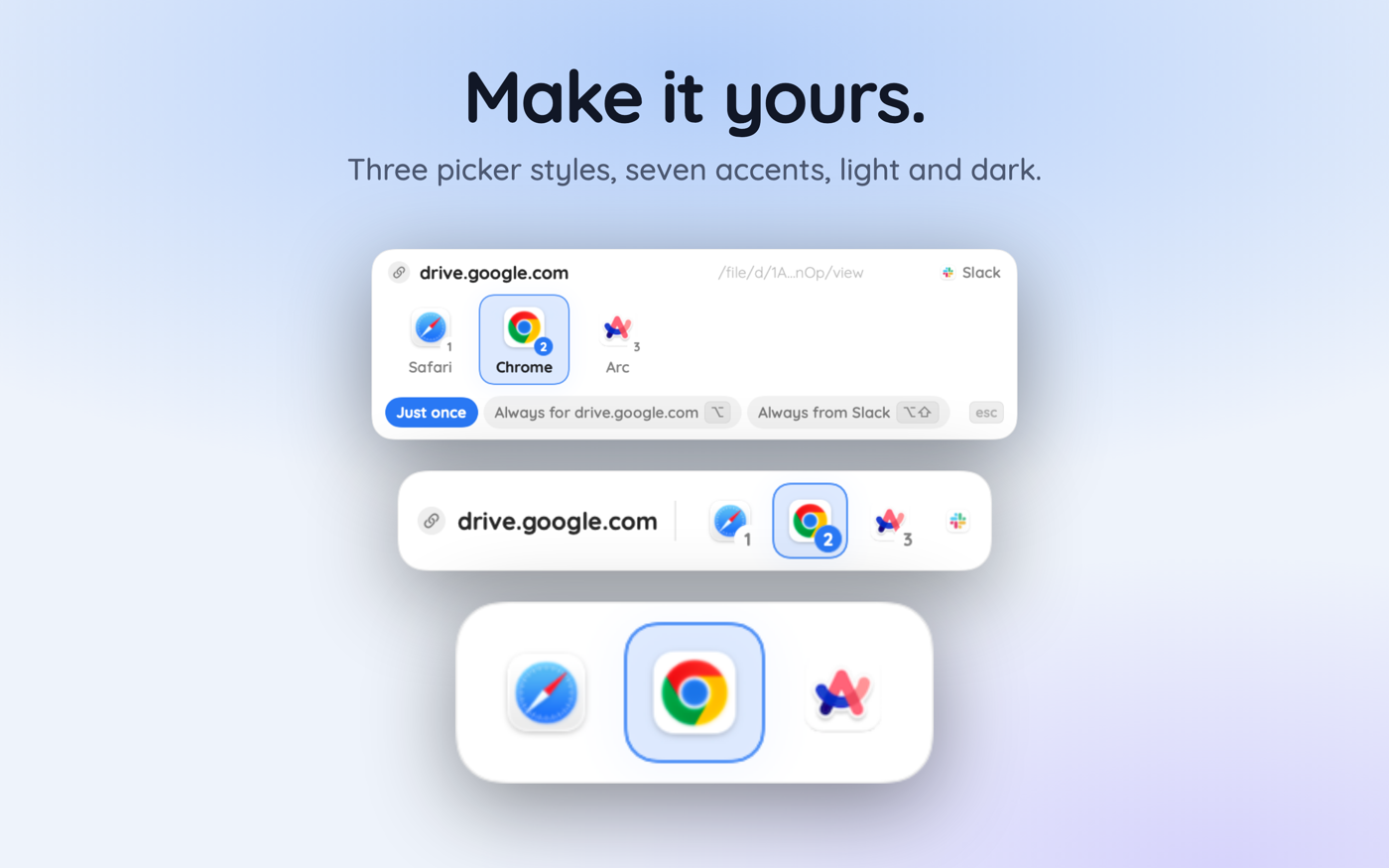
Three picker styles
Just icons, a compact strip, or the full card with the link and remember buttons. Switch any time.
Keyboard first
Number keys pick a browser, arrows move, Enter takes the highlighted guess, Escape cancels.
Yours to look at
Seven accent colours, light and dark, and an interface that follows your Mac or any of 37 languages you choose.
Easy to leave
One button hands the default browser back to whatever it was before. Nothing is left behind.
Pricing
Three rules cover most people forever. Past that, pick whichever shape you prefer — both unlock exactly the same thing.
Free
Free
Up to 3 routing rules, no account, no time limit.
Pro, one payment
$19.99
One payment. Unlimited rules, for good.
Pro, monthly
$3.99
Per month. Cancel any time in System Settings.
Subscription information
- Monthly: $3.99 (or local equivalent)
- Lifetime, in-app purchase: $19.99 (or local equivalent)
You can manage and cancel your subscription in your account settings on the App Store after purchase. Subscriptions renew automatically unless cancelled at least 24 hours before the end of the current period. Payment is charged to your Apple Account when you confirm the purchase.

Works with Safari, Chrome, Arc, Firefox, Brave, Edge, Vivaldi, Zen, Orion, Opera and DuckDuckGo.
Questions people ask
- What does Hoplink actually do?
- It becomes your Mac's default browser and then hands every link on to the browser you want. Click a link in Slack, Mail, Teams or Terminal and a small picker appears under your cursor with your installed browsers. Pick one, and the link opens there.
- Do I have to choose every single time?
- Only until you teach it. Hold Option while you pick and that site routes to that browser from then on. Hold Option and Shift and every link from that app routes there instead. After a handful of choices most links just land in the right place on their own.
- What happens if a link opens in the wrong browser?
- A small toast appears saying where it went. Press Command-Shift-Z and Hoplink reopens the link in a browser you choose, and offers to correct the rule that got it wrong. The toast disappears on its own after a few seconds.
- Which browsers does it work with?
- Safari, Chrome, Arc, Firefox, Brave, Edge, Vivaldi, Zen, Orion, Opera, DuckDuckGo and Chromium, plus their beta and developer builds. Hoplink lists whatever is actually installed on your Mac, and you can hide the ones you never use.
- Can it route to a specific Chrome profile?
- Chrome profile support is on the roadmap. Today Hoplink routes to browsers, and remembers which browser each site and each app should use. Profile-level routing is the next feature after launch.
- Does any of this leave my Mac?
- Your rules and your link history stay on your Mac. There is no account, no analytics and no tracking. Hoplink uses the network only for App Store purchases, and to fetch a site's icon for the picker if you leave that setting on. You can switch the icons off.
- What if I stop using it?
- Settings has a button that hands the default browser back to whatever it was before you installed Hoplink. Your rules are plain files in the app's own folder, and they go when you delete the app. Nothing is left behind in your browsers.
- Is it free?
- Hoplink is free for up to three rules, with no account and no time limit. If you need more, Hoplink Pro is a one-time purchase or a monthly subscription — both unlock exactly the same thing: unlimited rules.
- Does it handle links clicked inside a browser?
- No. Once you are already in a browser, that browser handles its own links; macOS does not offer them to another app. Hoplink handles links clicked in every other app on your Mac, which is where the wrong-browser problem actually happens.
- What does it need to run?
- macOS 14 Sonoma or later, on Apple silicon or Intel. Hoplink lives in the menu bar, has no Dock icon unless you want one, and uses no measurable CPU while it waits for a link.
Browser and link guides
How the default browser setting actually works on a Mac, and how to get every app to respect it.
How to Manage Multiple Browsers on macOS
Nobody chooses to run four browsers; it accumulates. Here is how to turn an accidental collection into an assigned system where every link knows where it belongs.
7 min readHow to Keep Work and Personal Browsing Separate on a Mac
Two browsers, two profiles, or two macOS accounts: each isolates something different and each leaks in the same place. A comparison, and the piece that stops the leak.
8 min readWhy Does My Mac Keep Opening Links in Safari?
Set the default browser, links still open in Safari. Five distinct causes — one setting, one cache, one app-level override — and the order to test them in.
7 min readHow to Open Links in a Specific Chrome Profile on Mac
Chrome drops every external link into whichever profile window you touched last. Here is the launch flag that targets a profile properly, and how to make it automatic.
8 min readHow to Make Zoom and Google Meet Links Open in the Right App
Click a meeting link, get a browser tab, get a dialog, then finally get the app — with thirty seconds gone. Where the detour comes from and how to remove it on a Mac.
7 min readSlack Links Open in the Wrong Browser? Here's the Fix
Slack has one setting, macOS has one setting, and between them you still can't send work links to your work browser while everything else stays personal. Here's what actually works.
7 min readWhat Is a Browser Picker, and Do You Need One?
One default browser is a single answer to a question that changes all day. What a browser picker is, how it hooks into macOS, and whether your setup actually calls for one.
7 min readHow to Open Links in a Different Browser on Mac
Every Mac has four ways to push one link into a non-default browser, and all four are fiddly. Here they are, ranked by friction — plus the setup that makes them unnecessary.
8 min readOutlook and Teams Links Opening in the Wrong Browser on Mac
Your Mac's default browser is set. Outlook still opens Edge. The per-app setting that overrides macOS, where it lives in each Microsoft app, and how to stop fighting it app by app.
8 min readHow to Change the Default Browser on a Mac
The setting lives in one menu and takes five seconds — but it reverts, new browsers go missing from the list, and macOS only ever lets you pick one. All three problems, solved.
7 min read