How to Open Links in a Different Browser on Mac
Quick answer
To open one link in a different browser on a Mac, drag the link onto that browser's Dock icon, or copy it and paste it into the other browser. From Terminal, run 'open -a Firefox https://example.com'. To stop doing this by hand, install a browser picker that asks which browser to use, then remembers per-site rules.
macOS gives every link on your Mac to one browser. That is fine until it isn't — an internal tool tied to a corporate login, a banking site you'd rather keep in Safari, a document that only renders properly in Chrome. In each case you need to open a link in a different browser than the system default, and macOS offers no button for it.
What it does offer is four workarounds of varying awkwardness. This guide covers all of them — including the two that don't work where people think they do — and then the rule-based approach that removes the decision entirely.
Why does every link open in the same browser?
When an app has a link to open, it does not choose a browser — it hands the URL to the system, which looks up the registered handler for the http and https schemes in its Launch Services database and launches that one app. There is exactly one entry. Not one per site, not one per app: one, for everything, set in System Settings › Desktop & Dock.
That design was reasonable for most of computing history. It ages badly once a work identity and a personal identity share one machine, across several browser profiles and half a dozen apps with their own ideas about links.
How do you open a single link in another browser right now?
| Method | How | Friction |
|---|---|---|
| Drag to Dock | Drag the link onto the browser's Dock icon | Low — the browser must be in the Dock |
| Copy and paste | Copy Link, switch browser, paste in a new tab | Medium — four steps, loses your place |
| Terminal | open -a 'Google Chrome' https://example.com | Medium — precise, but you must be in Terminal |
| Finder › Open With | Saved .webloc files only, not links inside apps | High — needs the link saved to disk |
| Drag to a window | Drag the link onto an open window's tab bar | Low — that window must be visible |
Dragging to the Dock is the best of the manual options. Drag the link text onto the icon of the browser you want and macOS passes the URL to that specific app, bypassing the default entirely. It works from Mail, Notes, Slack, Messages and most native apps. Keep the browsers you actually use pinned in the Dock and it becomes a one-second gesture.
Two methods people expect to work but mostly don't: right-click › Open With is a Finder feature for files, so it appears only for a link already saved as a .webloc file on disk, not for a link inside a chat message. And Safari's Share menu lists only apps that register a macOS share extension, which most browsers do not.
How do you open a link in a specific browser from the command line?
The 'open' command takes an application name or a bundle identifier, plus a URL. Bundle identifiers are more reliable — they survive the app being renamed or moved out of /Applications:
- open -a 'Google Chrome' https://example.com — by application name
- open -b com.google.Chrome https://example.com — by bundle identifier
- open -b org.mozilla.firefox https://example.com — Firefox
- open -b com.apple.Safari https://example.com — Safari
- open -b com.microsoft.edgemac https://example.com — Microsoft Edge
To find any app's bundle identifier, run osascript -e 'id of app "Safari"'. The same 'open -b' syntax is what a Shortcuts action, an Alfred workflow or a Raycast script uses under the hood — if you build your own routing, this is the primitive it sits on. Targeting a specific Chrome profile needs a launch flag instead.
How do you make links open in the right browser automatically?
Every method above is a decision made one link at a time, and that is the real cost — not the seconds, but having to notice. The alternative is to insert something between the click and the browser. A browser picker registers as the single macOS default, catches every URL the system emits, and either asks where it should go or applies a rule you set earlier.
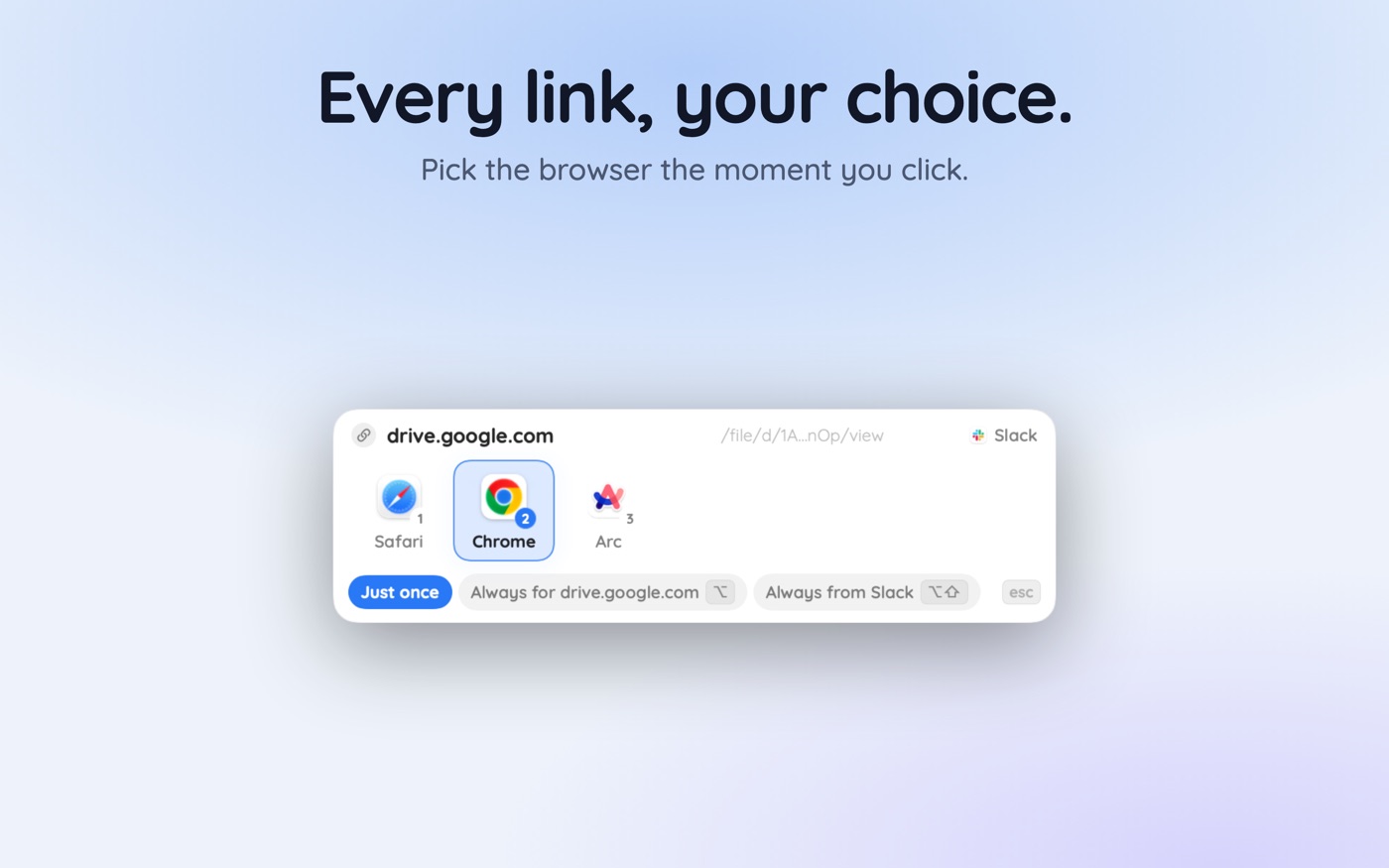
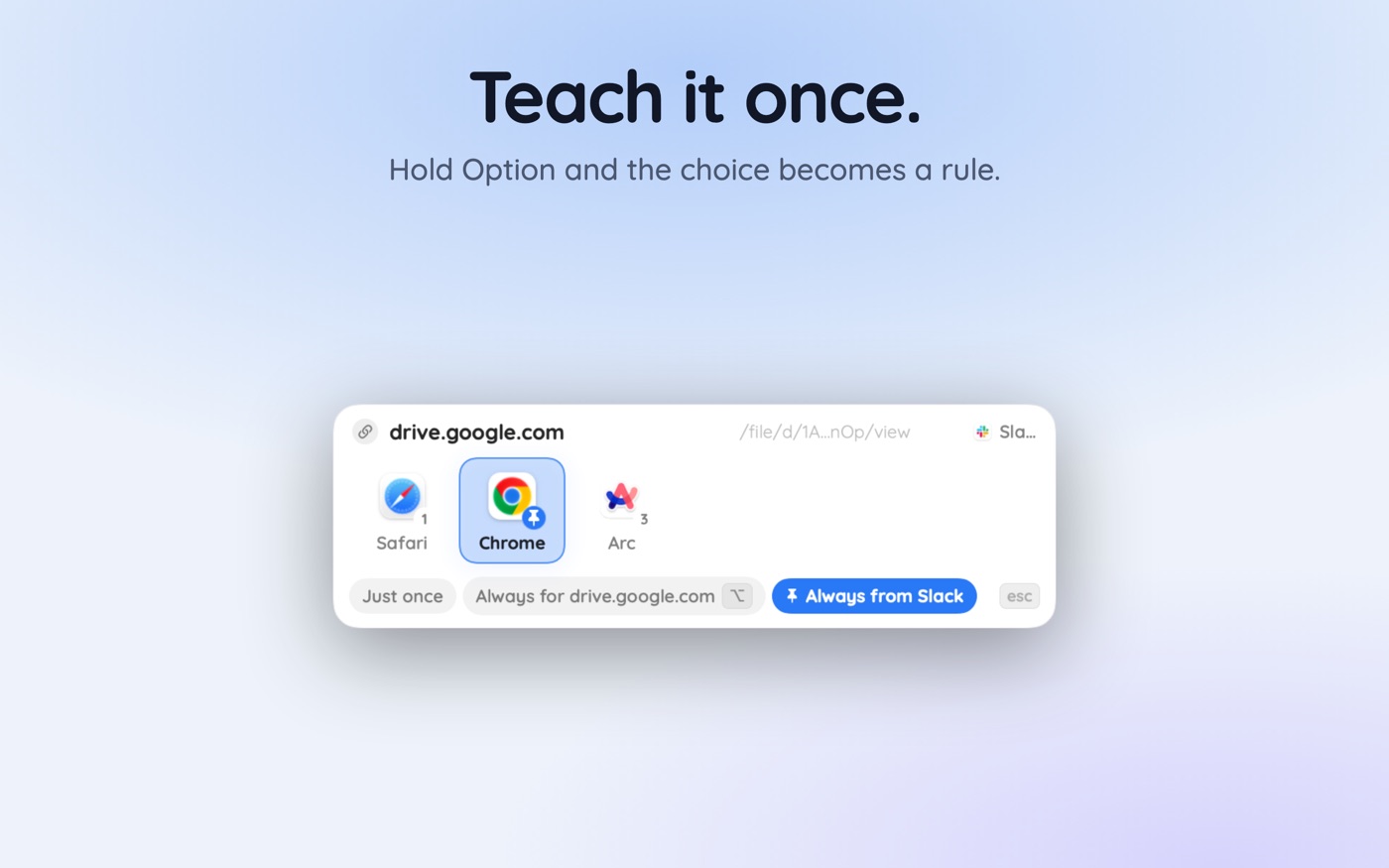
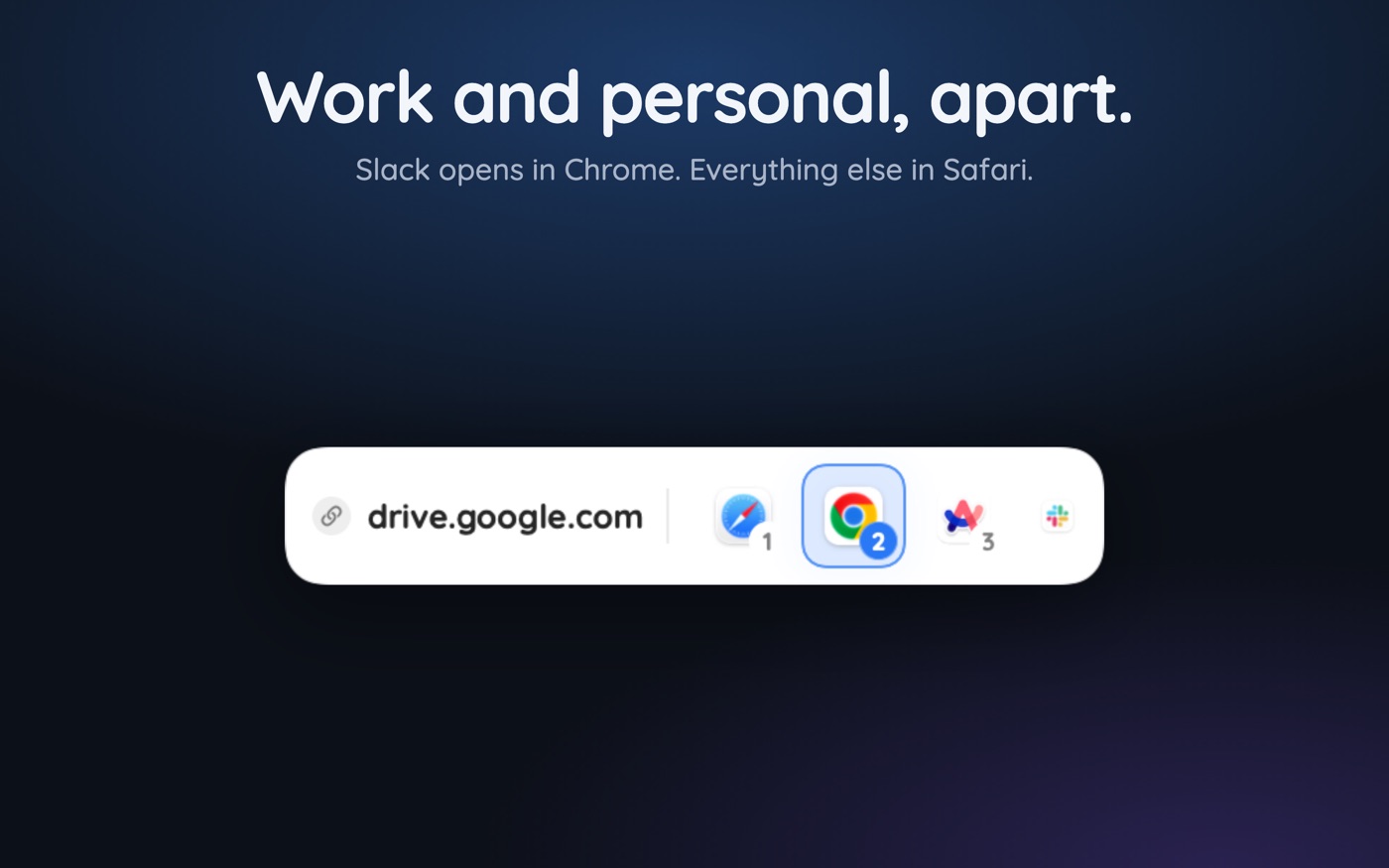
With a browser picker like Hoplink, a chooser appears under your mouse cursor the moment you click a link, listing the browsers you have installed. Click one and the link opens there — the drag-to-Dock gesture without the aiming. The part that compounds is the modifier keys:
- Click a browser normally — the link opens there once, nothing is remembered.
- Hold Option — that browser becomes the permanent rule for that website.
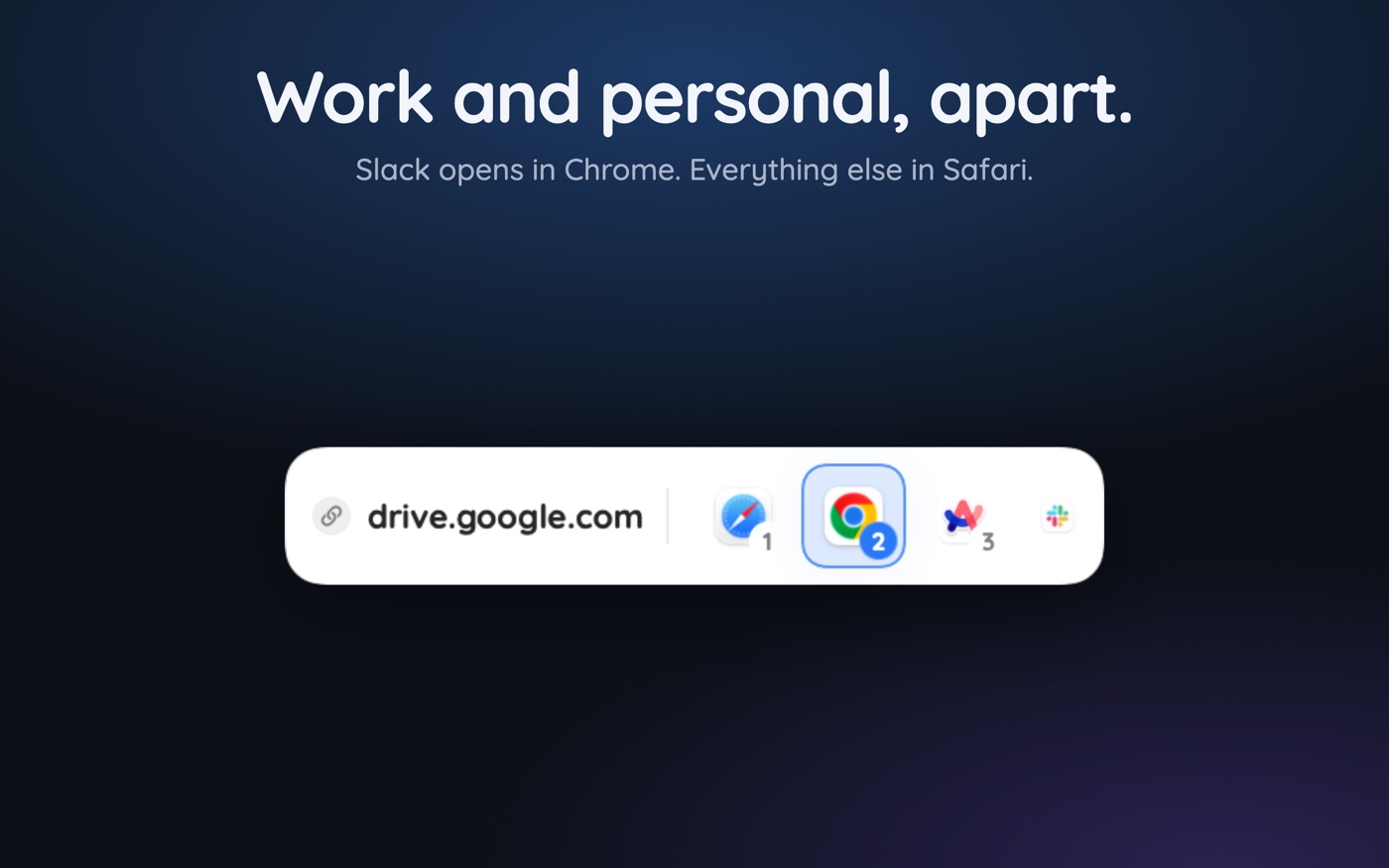
- Hold Option and Shift — the rule covers the app the link came from, so every link out of Slack goes one place.
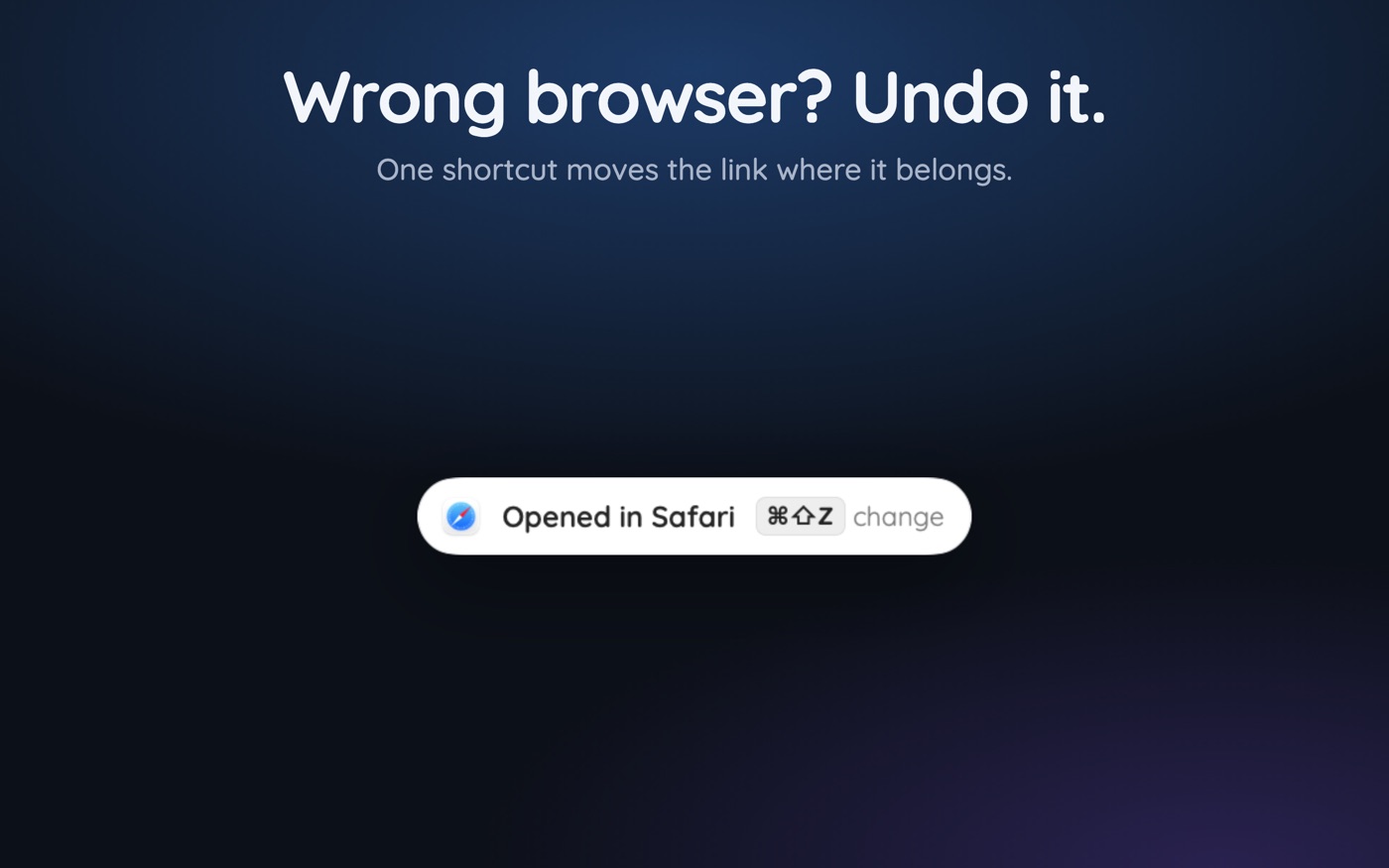
- Route something wrong and a toast appears — Command-Shift-Z reopens it correctly and drops the bad rule.
After a week of ordinary clicking the picker mostly stops appearing: the sites and apps you use constantly have rules, and only new links still ask. That is the intended end state — a picker you rarely see.
Which links are worth a rule?
Rules pay off where the pattern is stable. A useful starting set for a Mac carrying one work life and one personal life:
- Your company domain and internal tools — the work browser, where the SSO session lives.
- Google Docs, Sheets and Calendar — whichever browser or profile holds that account.
- Banking and government sites — Safari, isolated from an extension-heavy daily browser.
- localhost and 127.0.0.1 — the browser with your developer flags set.
- Slack, Teams and Outlook as source apps — one rule each, covering hundreds of links, as in the Slack fix.
- Everything else — unruled, so the picker still asks.
The last item is the one people skip and regret. A setup with an answer for every possible link will eventually send something to the wrong place and never tell you. Leaving the long tail unruled keeps the decision visible exactly where you want to think. Managing multiple browsers on macOS covers the profile and window side of the same problem.
What about links that shouldn't open in a browser at all?
A meaningful share of the links you click are not really web pages. Zoom invitations, Meet links, Figma files, Notion pages and Slack channel links all have native Mac apps, reached by a custom URL scheme, a redirect page with a 'launch app' button, or a universal link macOS hands straight to the app. When they land wrong you get a tab that exists only to bounce you elsewhere — or a meeting joined in a browser with no camera permission. Zoom and Meet links opening in the wrong place has its own fixes, but a rule on the meeting domain is often the simplest of them.
Key takeaways
- Dragging a link onto a browser's Dock icon is the fastest no-install way to open it elsewhere.
- Right-click › Open With only works on saved .webloc files; the Share menu rarely lists other browsers.
- From Terminal, 'open -b com.google.Chrome https://…' targets a browser by bundle identifier.
- Manual methods cost attention, not time — you have to remember on every link.
- A picker turns the choice into a rule: Option binds a website, Option-Shift binds a source app.
- Leave the long tail unruled so the picker still asks where it matters.
Skip the guesswork — scan it
Hoplink: every link, your choice — a browser picker for the mac.
Frequently asked questions
How do I open a link in Chrome when Safari is my default browser?
Drag the link onto Chrome's Dock icon, or copy it and paste it into a Chrome tab. From Terminal, 'open -b com.google.Chrome https://example.com' does the same. For sites you open in Chrome repeatedly, a browser picker with a per-site rule removes the manual step for good.
Is there a keyboard shortcut to open a link in another browser on Mac?
macOS has no built-in shortcut for it. The closest native options are dragging the link onto a Dock icon or running 'open -b' in Terminal. A browser picker adds real modifier shortcuts, since holding Option or Option-Shift while choosing converts that one choice into a lasting rule for the site or the source app.
Why doesn't 'Open With' appear when I right-click a link?
Open With is a Finder command for files on disk, not for links inside apps. It appears only once the link is saved as a .webloc file — drag a URL to the Desktop and the right-click menu will then list your browsers. For links in a chat or email, drag to the Dock instead.
Can I set a rule so one website always opens in a specific browser?
Not with macOS alone, which stores a single handler for all http and https links. A browser picker registers as that handler and applies per-domain rules, so a site always opens in the browser you bound it to while other links follow their own rules or ask.
Does opening links in another browser log me out of the first one?
No. Each browser keeps its own cookies and sessions, entirely separate from the others. That separation is why routing is useful — a work session in one browser and a personal session in another stay signed in simultaneously, with neither overwriting the other's cookies.
What is the fastest way to open many links in a second browser?
Set a rule rather than repeating a gesture. If the links share a domain, one per-site rule covers them all; if they come from one app, a per-app rule does. For a genuine one-off batch, paste the URLs into a text file and run 'open -b' over them in a shell loop.
Written by the Toscan Apps Team
We build AI identifier apps and test them against the real world daily — estate-sale furniture, garden soil, drawer-found seeds, lumber-yard offcuts, and houseplants included. Guides are checked against field references and refreshed as our models improve.