Slack Links Open in the Wrong Browser? Here's the Fix
Quick answer
Slack links open in whichever browser macOS has set as the system default, or in Slack's own built-in viewer. Turn the viewer off in Slack's Settings › Advanced, then set your preferred browser in System Settings › Desktop & Dock. To send only Slack links to a work browser, you need a browser picker with per-app rules.
Slack is a link firehose. Pull requests, dashboards, design files, shared documents, calendar invitations — most of a working day's links arrive through it. So when Slack sends them to the wrong browser, the friction compounds: a Google Doc opening under the wrong account, an internal tool bouncing you to a login page, a dashboard rendering without the extension it needs.
Two separate settings are involved, and neither is where people look first. This guide covers Slack's own link preference, why changing your macOS default is a half-fix, and the routing that sends Slack links one way while every other link goes another.
Why do Slack links open in the wrong browser?
Two different things can be happening, and the fix is different for each. Look at where the link actually landed:
| What you see | What's happening | Where to fix it |
|---|---|---|
| Page opens inside a Slack window | Slack's built-in web viewer is on | Slack › Settings › Advanced |
| Page opens in Safari when you use Chrome | macOS system default browser | System Settings › Desktop & Dock |
| Opens in Chrome but the wrong profile | Chrome sends links to the last-focused profile window | Chrome launch flags or a routing rule |
| Opens in a browser signed into a personal account | One default browser for work and personal links | Per-source routing |
| Zoom or Meet link opens a browser tab, not the app | Meeting link handled as a web page | The meeting app's own URL handling |
Rows one and two have settings. Rows three and four do not — they follow from macOS storing a single browser association for the whole machine, and no amount of clicking in Slack or System Settings changes that. Row five is its own problem.
How do you stop Slack opening links in its own viewer?
Slack for Mac can render web pages inside a Slack window instead of handing them to a browser — convenient for skim-reading an article, infuriating for anything needing a login, an extension or a password manager. The toggle lives in Slack › Settings (or Preferences) › Advanced.
- Open Slack and press Command-Comma to open Settings.
- Choose Advanced from the sidebar.
- Find the option controlling how links open — depending on your Slack version it reads either 'Open all links in your default browser' (turn it on) or 'Open web pages in Slack' (turn it off).
- Click any link to confirm it now leaves Slack entirely.
One useful side effect: once links leave Slack they go through the normal Launch Services path, so anything set at the system level — a default browser, or a picker — applies to them. While the in-app viewer is on, Slack sits upstream and your other settings never run.
Why doesn't changing the default browser fix it?
Because it fixes the wrong scope. Setting your default to the work browser in System Settings › Desktop & Dock does send Slack links there — along with every other link on the Mac. Personal email, weekend reading and every link in Messages now opens in a browser signed into your employer's account, with a work bookmarks bar and whatever extensions IT installed.
Set it the other way and the problem inverts: every Slack link lands in a browser with no SSO session, so you hit a login wall several times a day. No setting resolves this, because the thing you want to express — *links from this app go here, everything else goes there* — is not something macOS models. It stores one bundle identifier for http and https, full stop.
- Default = work browser: personal links leak into your work profile and history.
- Default = personal browser: every Slack link hits an SSO login wall.
- Manually redirecting: works, but you have to remember on every single link.
- Per-source routing: the only option that expresses the actual rule.
How do you send only Slack links to your work browser?
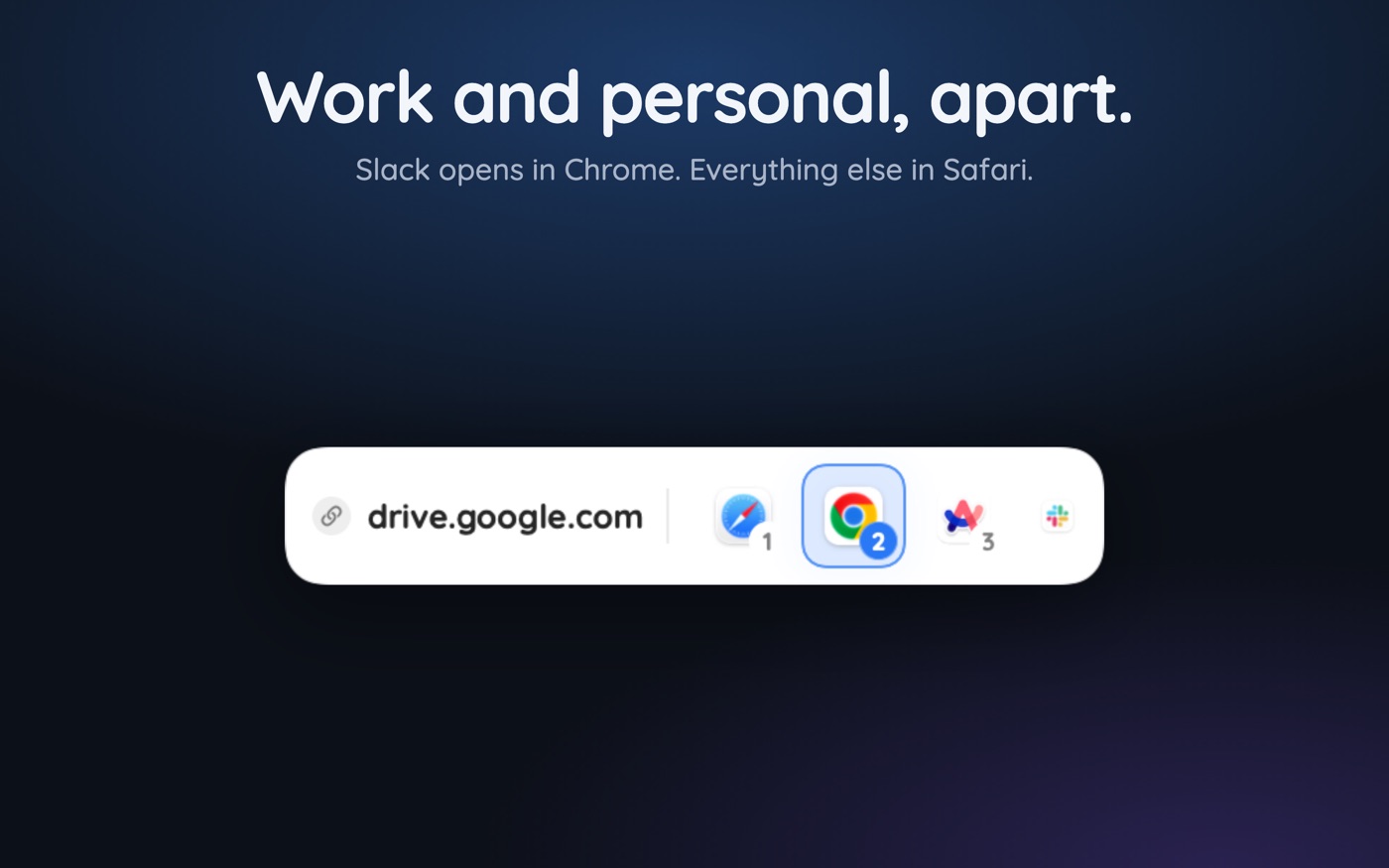
By routing on the source app rather than the destination. The tool that does this makes itself the macOS default browser, so every link — Slack's included — arrives at it first. It can then see which app the link came from and apply a rule accordingly.
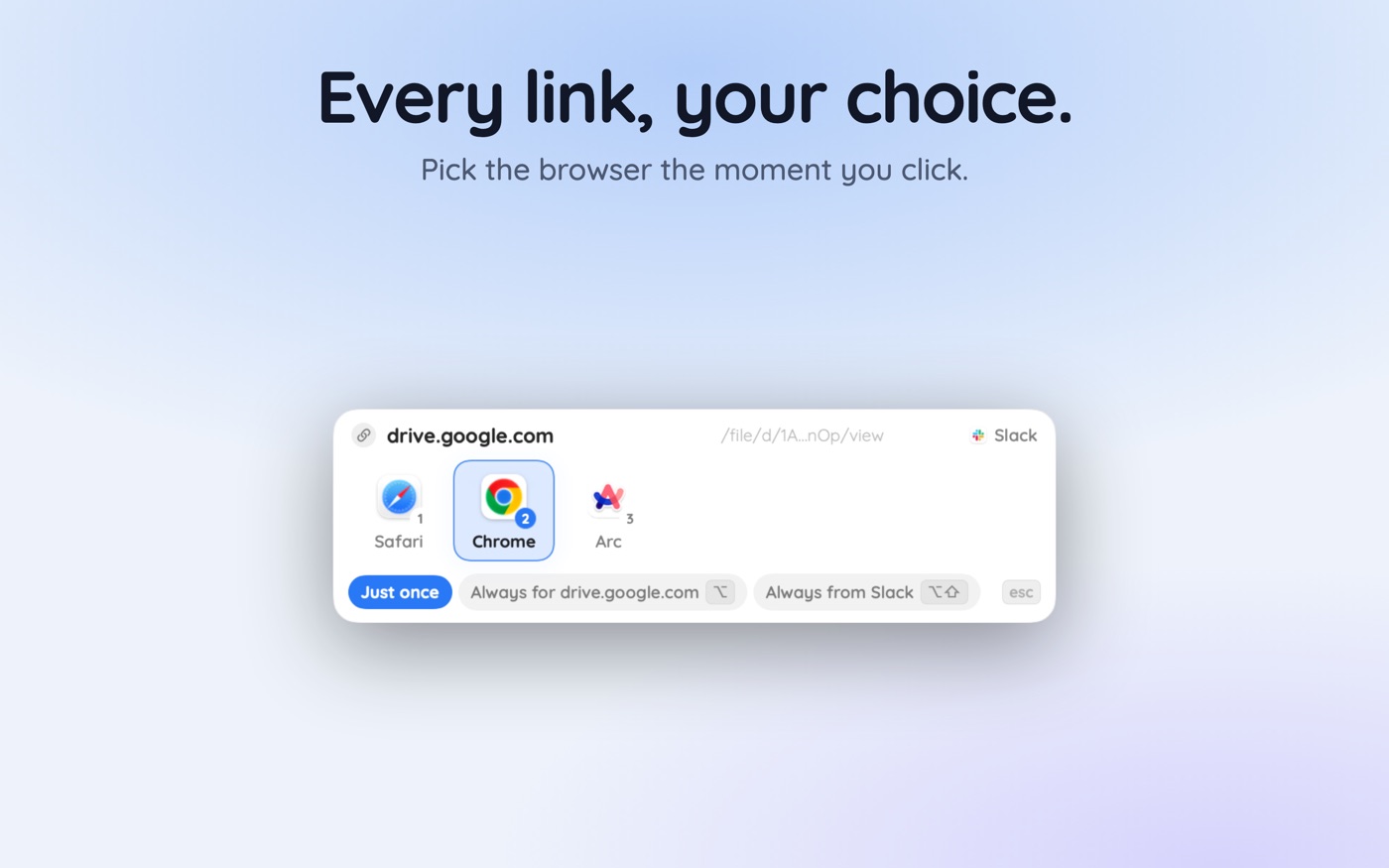
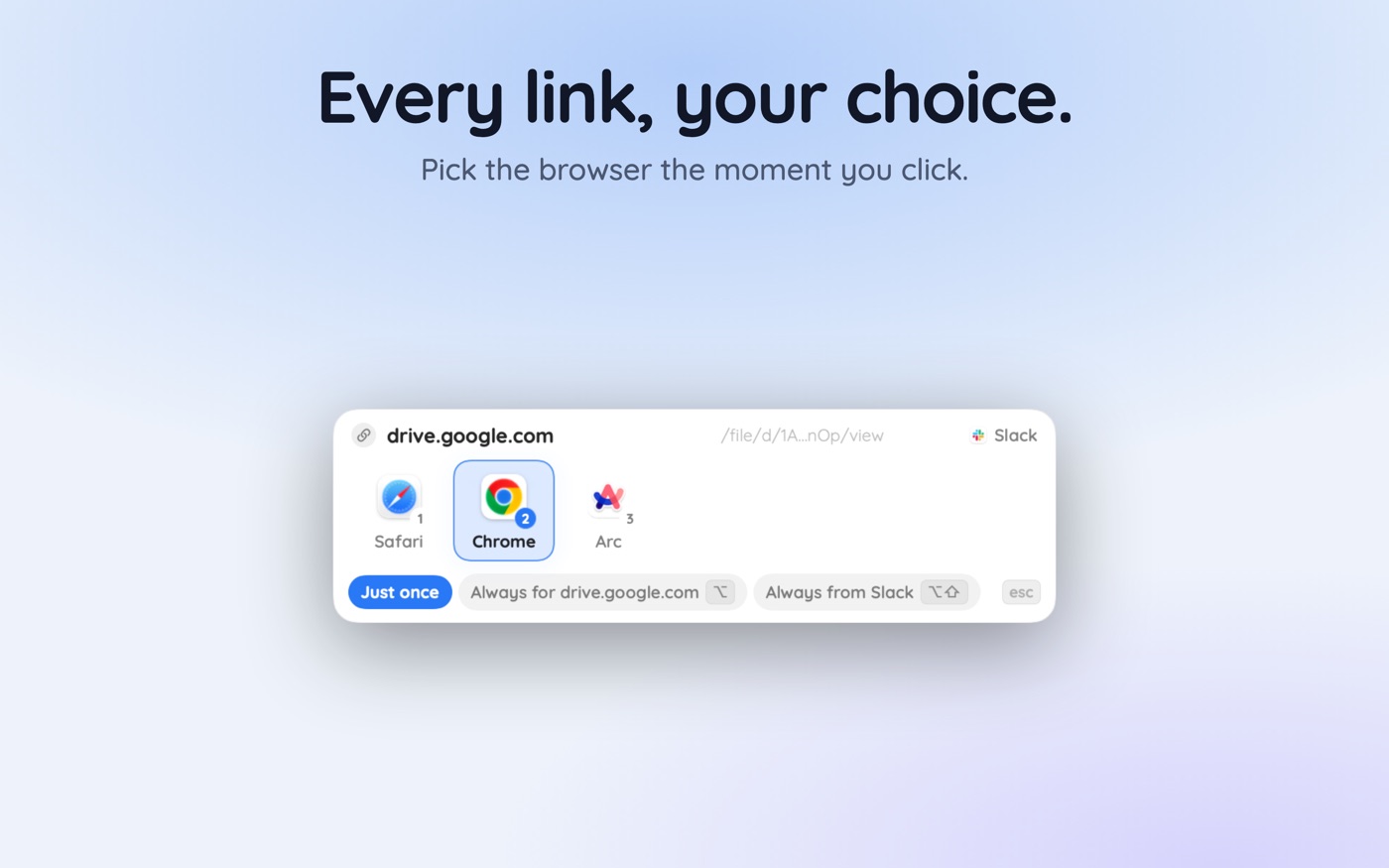
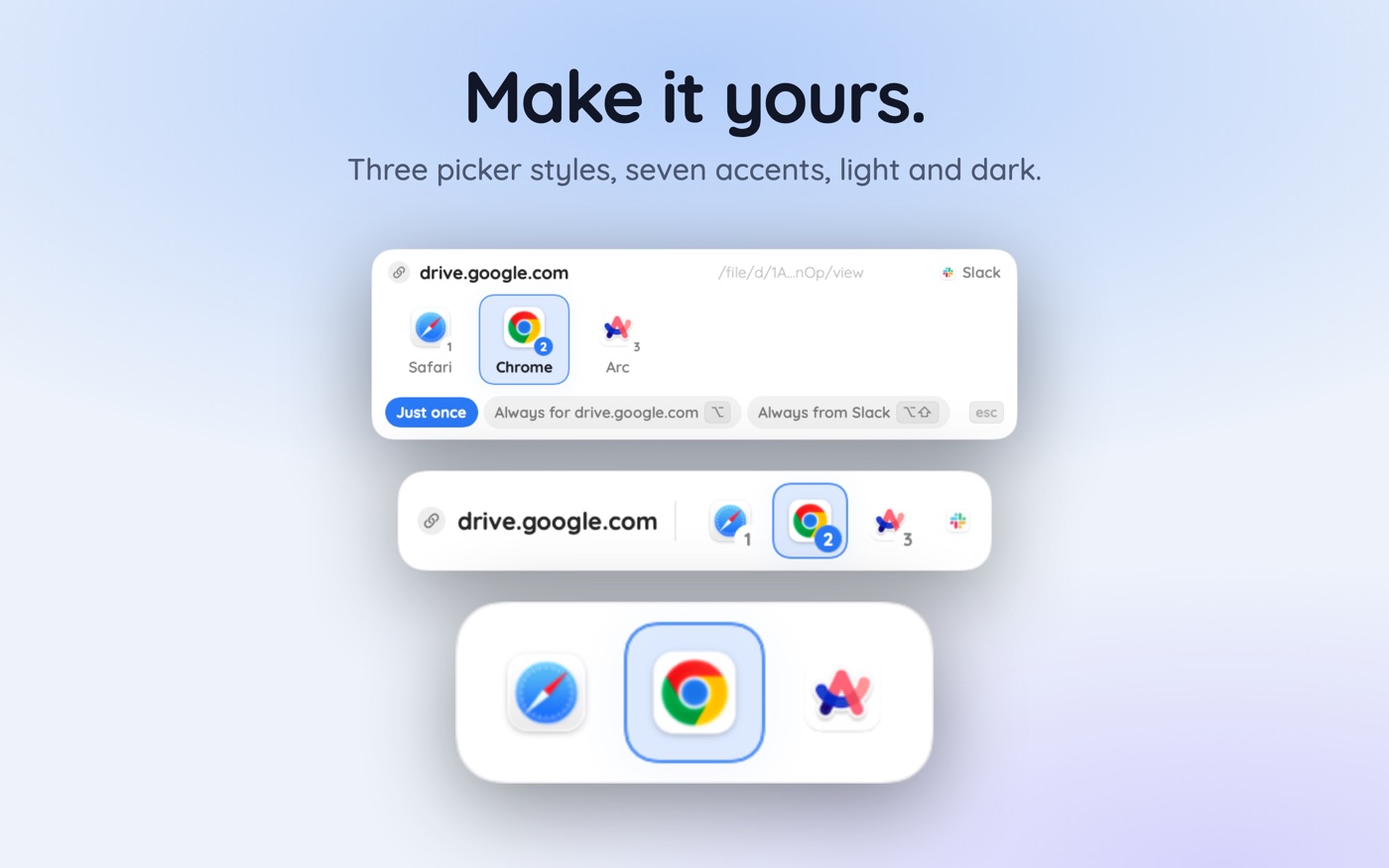
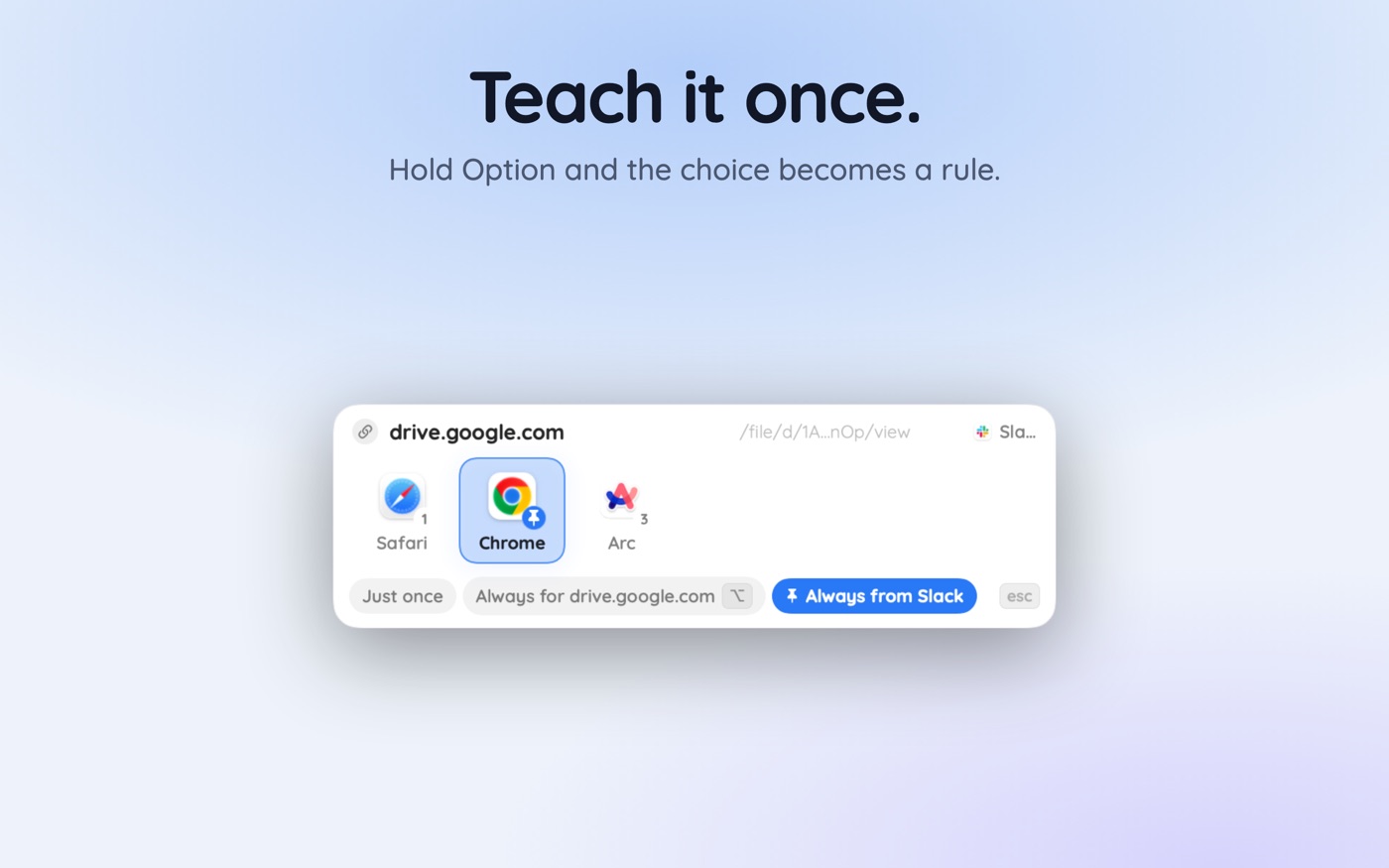
With a browser picker like Hoplink, setup is a single click on your next Slack link. The picker appears under your cursor with your installed browsers; hold Option and Shift and click your work browser, and that becomes a rule for the source app. Every Slack link then opens there silently, while links from Mail, Messages and Notes behave however you've set them.
- Set the picker as your default browser in System Settings › Desktop & Dock.
- Turn off Slack's in-app viewer so links actually reach it.
- Click any link in Slack; when the picker appears, Option-Shift-click your work browser.
- Click a second Slack link to confirm it routes silently.
- If a route is wrong, press Command-Shift-Z on the toast to reopen it elsewhere and drop the rule.
What about Slack links that shouldn't follow the rule?
A per-app rule is a broad instrument, and some Slack links don't belong in the work browser: a community workspace you joined personally, a shared article, your own side project. Those want a per-site exception — Option-click the browser you prefer while the picker is showing that domain, and that website gets its own rule whichever app the link arrived from.
Change one rule at a time and test with a real click rather than configuring ten blind. The undo toast makes that cheap: click, see where it went, Command-Shift-Z if it was wrong. Two minutes on real links beats twenty minutes imagining what you click.
- Multiple Slack workspaces are all the same source app — separate them with per-site rules.
- Slack's own deep links (workspace invites, channel links) never reach a browser at all.
- Links opened from Slack notifications route exactly as links clicked inside Slack do.
- On a managed Mac, check for a configuration profile before assuming a rule failed.
Key takeaways
- Two settings are in play: Slack's in-app viewer, and the macOS default browser.
- Slack › Settings › Advanced decides whether pages open in Slack or leave for a browser — wording varies by version.
- Changing the macOS default fixes Slack links by sending every other link there too.
- Per-source routing is the only way to express 'Slack goes to work, everything else stays personal'.
- Option-Shift-click binds the source app; Option-click binds a single website as an exception.
- Test with real clicks and use the undo toast rather than configuring rules blind.
Skip the guesswork — scan it
Hoplink: every link, your choice — a browser picker for the mac.
Frequently asked questions
How do I make Slack open links in Chrome instead of Safari?
Turn off Slack's in-app viewer in Settings › Advanced so links reach macOS, then set Chrome as your default in System Settings › Desktop & Dock. That sends every link on the Mac to Chrome — if you want only Slack's links there, use a browser picker with a per-app rule instead.
Where is the Slack setting for opening links in a browser?
Press Command-Comma in Slack for Mac and choose Advanced in the sidebar. Depending on your version the checkbox reads 'Open all links in your default browser' or 'Open web pages in Slack'. Read the wording rather than the position, because one desktop release inverted the phrasing.
Can Slack open links in a specific Chrome profile?
Not on its own. Slack hands the URL to macOS, and macOS launches Chrome, which opens it in whichever profile window was focused most recently. Targeting a profile requires launching Chrome with a --profile-directory flag, which is what a routing tool does on your behalf.
Why do some Slack links still open in the wrong place after I changed the setting?
Usually one of three things: the link is a meeting or app deep link handled by another app entirely, the destination browser opened it in a different profile, or a managed configuration profile on a work Mac re-applies its own default browser at login. Check which of the three it is before changing more settings.
Can I send work Slack links to one browser and personal ones to another?
Yes, with per-source routing. Bind Slack as a source app to your work browser so all its links go there, then add per-site rules for the handful of domains that belong elsewhere. macOS alone cannot do this — it stores exactly one browser for all http and https links.
Does turning off Slack's in-app browser slow anything down?
No. Links open in a real browser instead of a Slack window, which is usually faster in practice because your existing sessions, password manager and extensions are already loaded there. You lose only the ability to skim a linked page without leaving the Slack window.
Written by the Toscan Apps Team
We build AI identifier apps and test them against the real world daily — estate-sale furniture, garden soil, drawer-found seeds, lumber-yard offcuts, and houseplants included. Guides are checked against field references and refreshed as our models improve.