How to Change the Default Browser on a Mac
Quick answer
To change the default browser on a Mac, open System Settings, choose Desktop & Dock, scroll to Default web browser and pick a browser from the menu. On macOS Monterey and earlier the same setting is in System Preferences › General. The browser must be installed and launched once before it appears in the list.
There are two halves to this question. The first is mechanical: where the setting is, which is a different place depending on how old your macOS is. The second is the half people actually arrive with — the default browser keeps changing back, the browser you just installed isn't in the dropdown, or you picked one and immediately realised you want work links and personal links going to different places.
This guide covers the exact menu path for every macOS version, the Launch Services behaviour behind the missing-browser and reverting-setting problems, and the limitation nobody mentions: macOS lets you nominate exactly one browser for every link, with no way to split that by site or by app.
Where is the default browser setting on macOS?
| macOS version | Path to the setting |
|---|---|
| Ventura (13) and later — Sonoma, Sequoia, Tahoe | System Settings › Desktop & Dock › Default web browser |
| Monterey (12) and earlier | System Preferences › General › Default web browser |
| Any version, from Safari | Safari › Settings › General › Default web browser |
| Any version, from Chrome | chrome://settings/defaultBrowser › Make default |
| Any version, from Firefox | Firefox › Settings › General › Make Default… |
| Any version, from Edge | edge://settings/defaultBrowser › Make default |
The Ventura redesign moved it somewhere genuinely unintuitive. Desktop & Dock sounds like wallpaper and Dock size, and the Default web browser row sits near the bottom of that pane, below Windows & Apps. If scrolling fails, type 'default web browser' into the search box at the top left of System Settings.
- Open System Settings from the Apple menu.
- Click Desktop & Dock in the sidebar.
- Scroll to the Default web browser row, near the bottom of the pane.
- Click the dropdown and choose your browser.
- Test it: run 'open https://example.com' in Terminal.
Why doesn't my newly installed browser appear in the list?
Because macOS has not registered it yet. The dropdown is not a scan of your Applications folder — it is built from Launch Services, the system database recording which apps can handle which document types and URL schemes. An app declares that in its Info.plist, but macOS generally only trusts the declaration once the app has been opened at least once.
- Quit System Settings completely (Command-Q, not just closing the window).
- Open the new browser from Applications and let it finish its first-run setup.
- Quit the browser, reopen System Settings, and check the dropdown again.
If it still isn't listed, the Launch Services database is probably stale — a common outcome of restoring from a backup or moving apps between folders. Rebuilding it is one safe Terminal command: the database is a cache, reconstructed from the apps actually on disk.
Why does my Mac keep switching the default browser back?
Almost always because something asked and something said yes. Browsers check whether they are the default on nearly every launch, and the prompt — a banner across a new tab, or a system dialog — is easy to dismiss with the wrong button. A single mistaken click on 'Use as default' rewrites the system-wide setting instantly, with no confirmation and no notification.
| Cause | What it looks like | Fix |
|---|---|---|
| A browser's own prompt got accepted | Setting flips right after opening that browser | Turn off its default-browser check in its settings |
| A browser update re-asked | Flips after an auto-update restart | Same — disable the check, then re-set the default |
| A macOS upgrade reset associations | Flips once, after a major version update | Re-set it in System Settings; it should hold |
| Stale Launch Services database | Flips repeatedly, or back to Safari at random | Rebuild with lsregister, then re-set |
| An enterprise configuration profile | Reverts on login, on a managed Mac | System Settings › General › Device Management — ask IT |
The fix is to stop the asking. In Chrome, open chrome://settings/defaultBrowser and disable the check; Firefox has an 'Always check if Firefox is your default browser' box under Settings › General; Edge hides the same one at edge://settings/defaultBrowser. On an employer-issued Mac, check System Settings › General › Device Management first — a managed configuration profile can re-apply a default browser at every login, and no amount of local clicking will beat it.
How do you check which browser is actually handling links?
Don't trust the dropdown — test the behaviour. The fastest test is Terminal, because it goes through exactly the same Launch Services path as a click in Mail or Slack:
- Run 'open https://example.com' in Terminal — whatever browser comes forward is your real default.
- Click a link in Notes or Mail — apps with their own in-app viewers bypass the system default entirely.
- Click a link in Slack, Teams or Outlook — each layers its own link preference on top, as in the Outlook and Teams guide.
That last point catches people out. If links from one app keep landing wrong while everything else behaves, the system default is fine and the app is the problem — see why a Mac keeps opening links in Safari for the ways an app can quietly override your choice.
What if you want different links to open in different browsers?
This is where the setting runs out. macOS stores exactly one association for the http and https schemes — one bundle identifier, for every link from every app on the machine. No per-site option, no per-app option, no per-profile option. If work runs in one Chrome profile, your personal life in another, and banking in Safari, this setting can satisfy exactly one of the three.
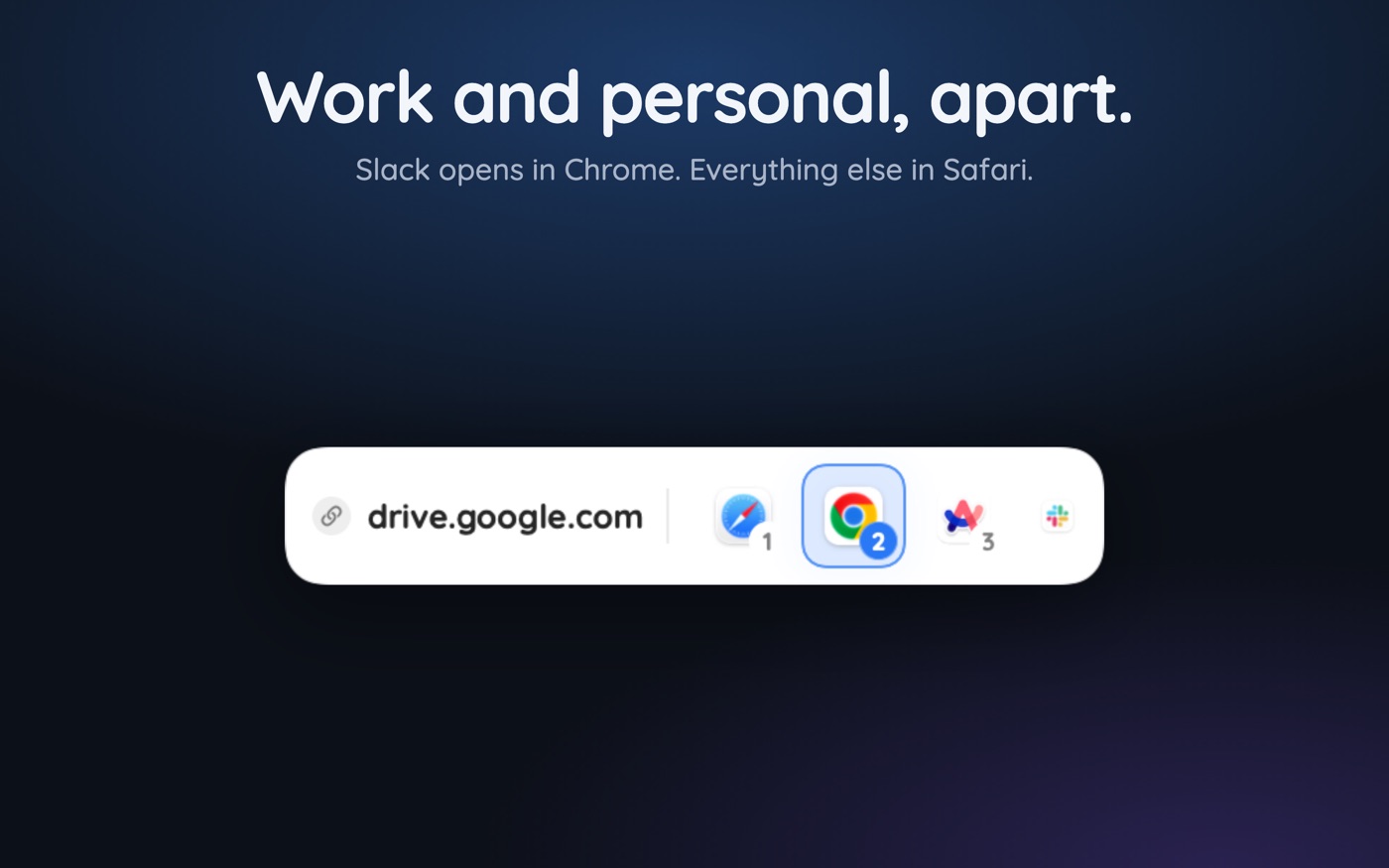
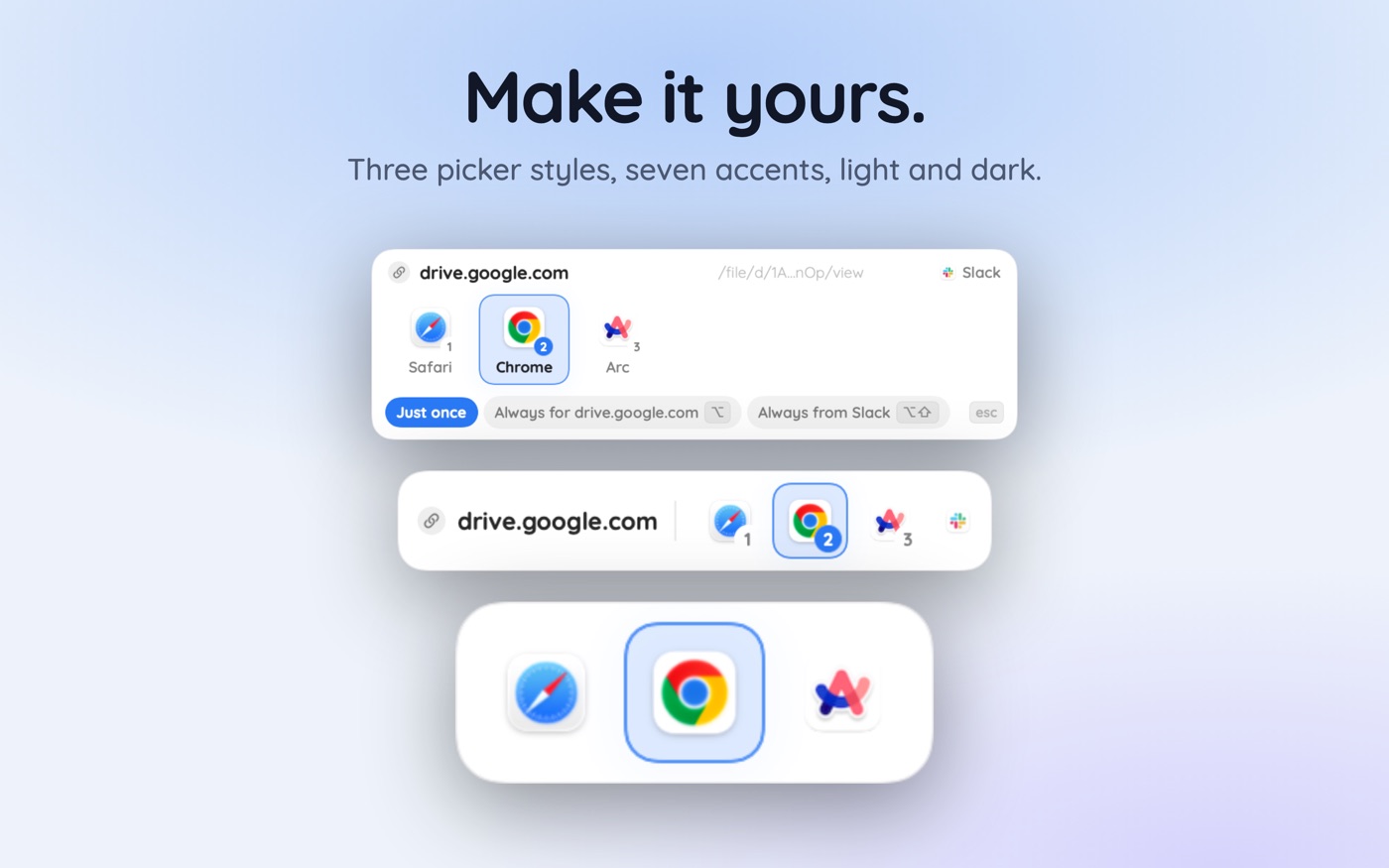
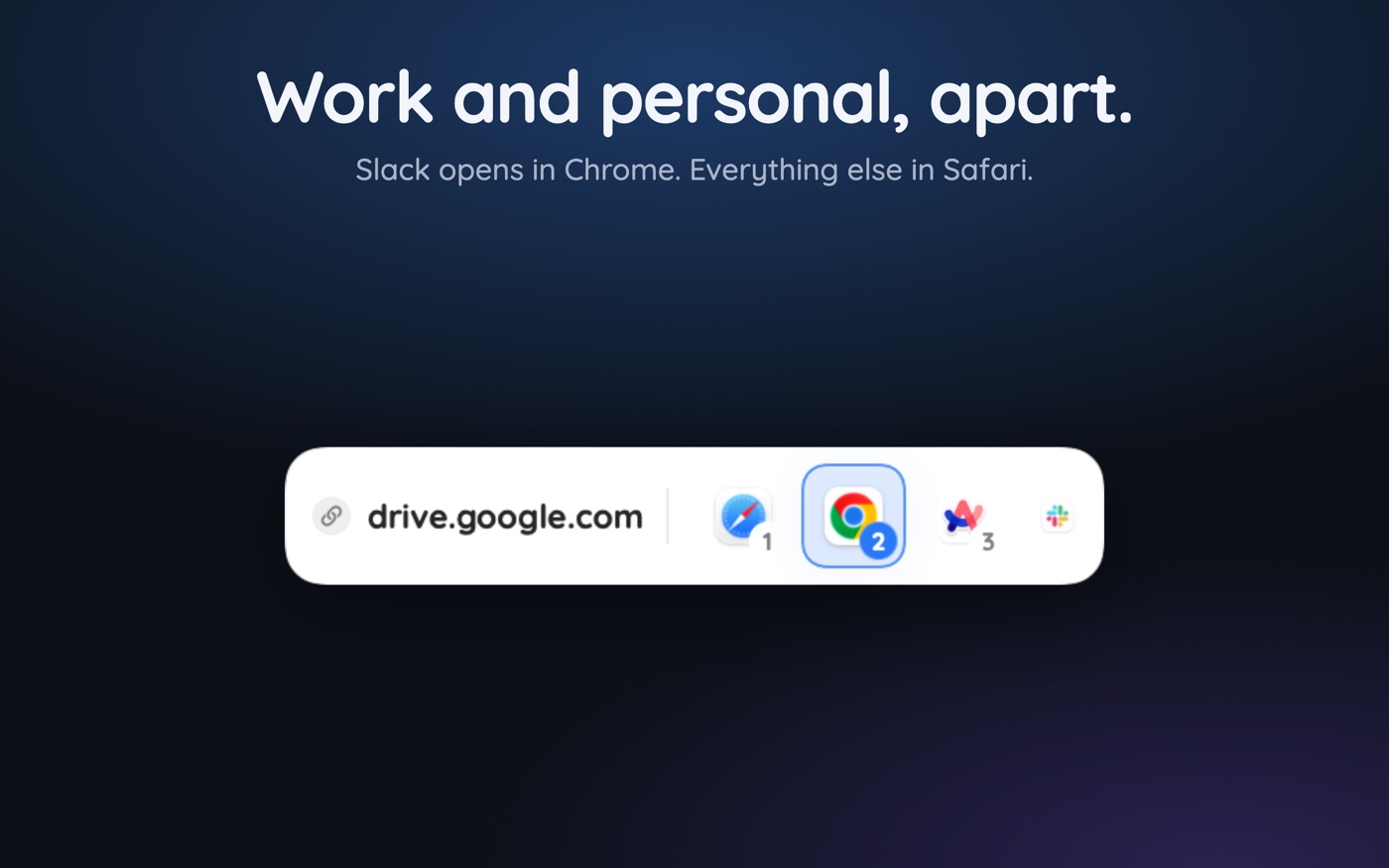
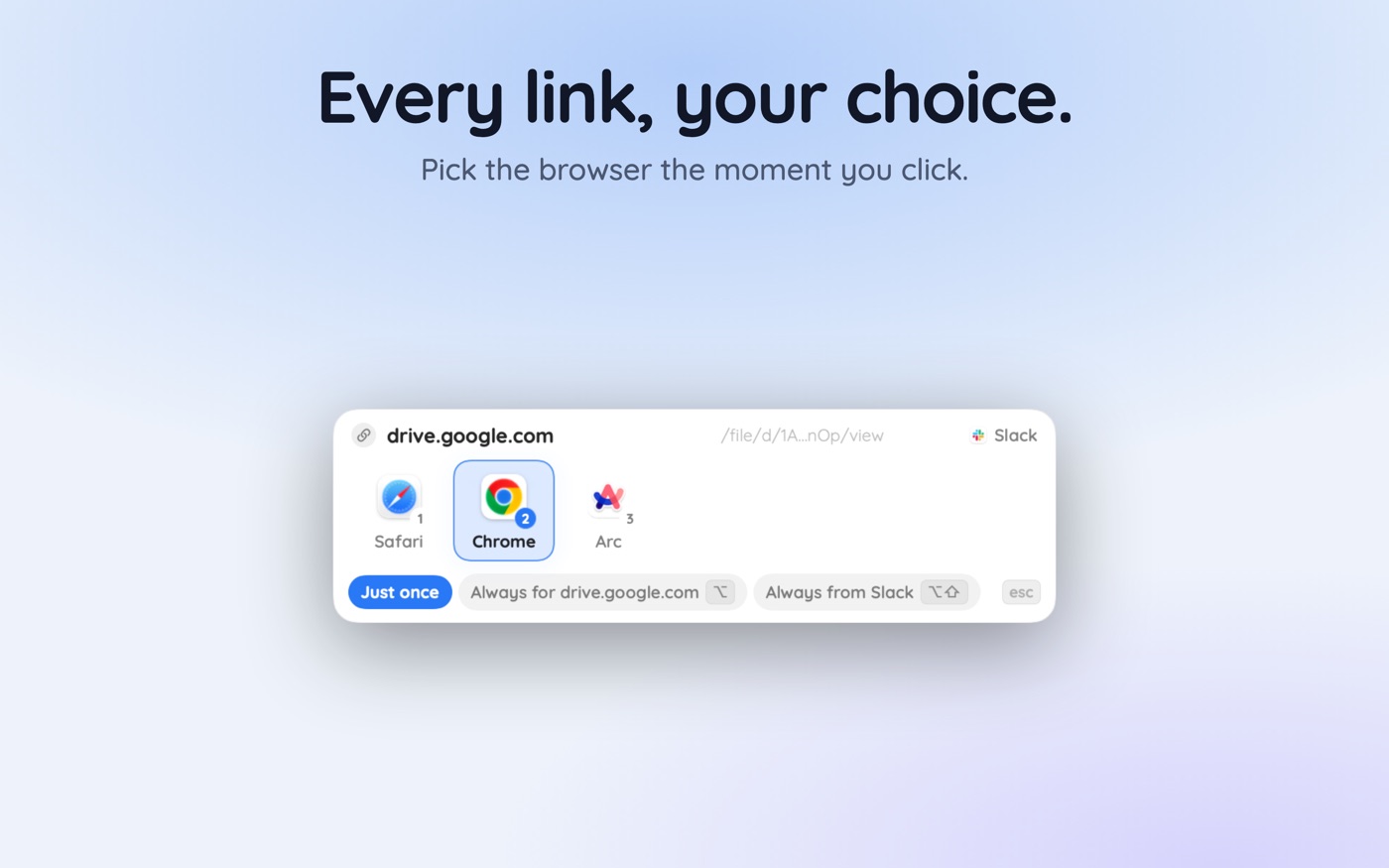
The category that solves this is the browser picker: a small app that makes itself the system default, then decides where each link really goes. With a browser picker like Hoplink, clicking a link pops a chooser under your cursor listing your installed browsers. Hold Option while choosing and that becomes a permanent rule for that website; hold Option and Shift and it becomes a rule for links from that app.
- One-off links: the picker appears, you choose, nothing is remembered.
- Sites you always want in one place: Option-click that browser once and the rule sticks.
- Whole apps worth routing: Option-Shift-click, and that app's links stop asking.
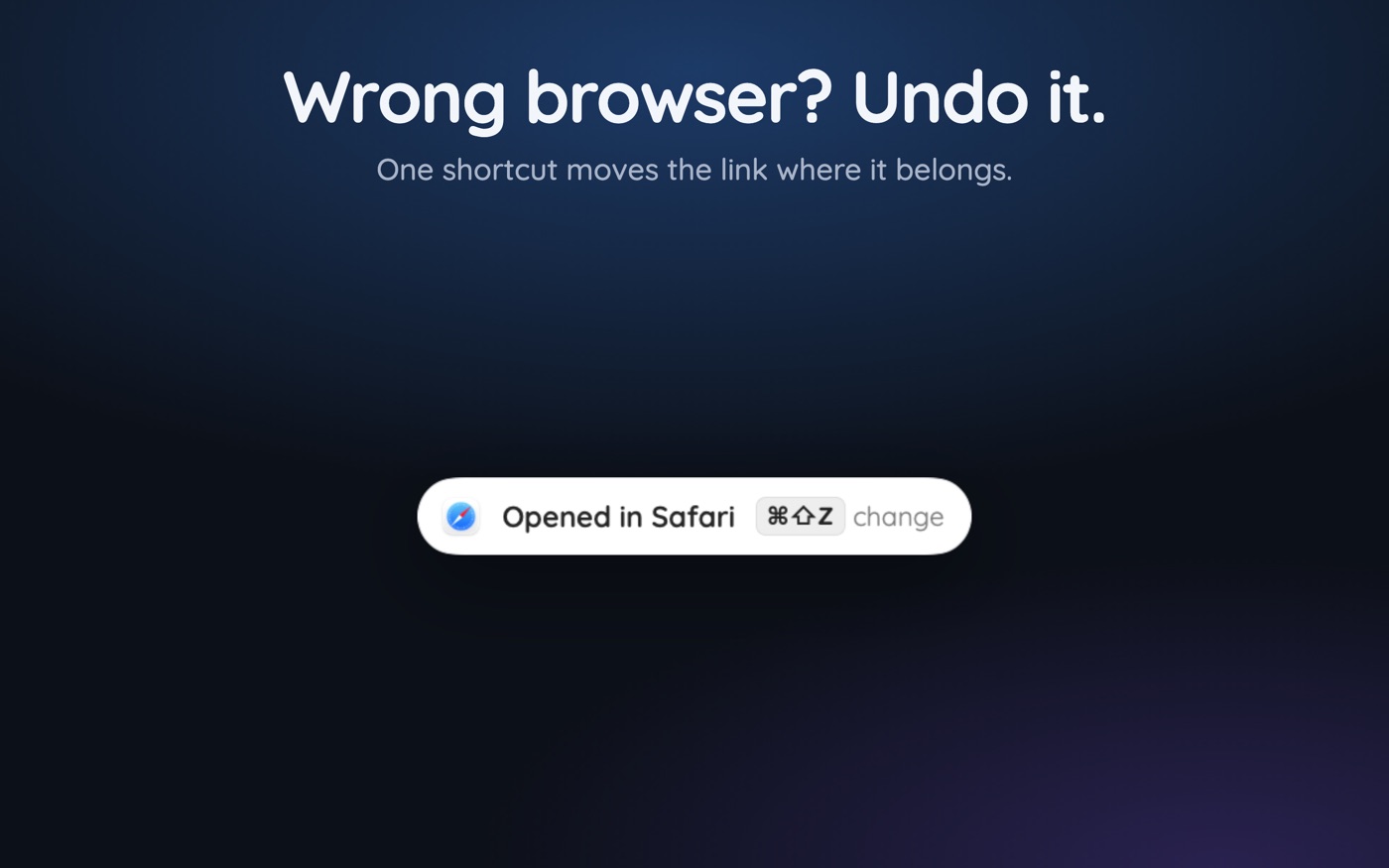
- Wrong route: a toast appears and Command-Shift-Z reopens the link in the browser you meant.
Read what a browser picker actually is before installing anything — and for the occasional link only, the manual methods in opening links in a different browser need nothing installed at all.
Key takeaways
- macOS Ventura and later: System Settings › Desktop & Dock › Default web browser. Monterey and earlier: System Preferences › General.
- A new browser must be launched once before Launch Services lists it in the dropdown.
- Reverting settings are usually a browser's own default-browser prompt being accepted — disable the check in each browser.
- A stale Launch Services database causes random reverts; rebuilding it with lsregister is safe and fixes them.
- Verify with 'open https://example.com' in Terminal, not by trusting the dropdown.
- macOS allows exactly one default browser for everything — per-site and per-app routing needs a picker.
Skip the guesswork — scan it
Hoplink: every link, your choice — a browser picker for the mac.
Frequently asked questions
How do I change the default browser on macOS Sequoia?
Open System Settings, click Desktop & Dock in the sidebar, scroll to the Default web browser row near the bottom, and pick your browser from the dropdown. The path is identical on Ventura, Sonoma, Sequoia and Tahoe — only Monterey and earlier use System Preferences › General instead.
Why is Chrome not showing in my default browser list?
macOS builds that list from Launch Services, which usually only registers an app after it has been launched once. Quit System Settings, open Chrome from Applications, let it finish first-run setup, then reopen System Settings and check again. If it still isn't listed, rebuild Launch Services with lsregister.
Why does my Mac keep resetting my default browser to Safari?
Two common causes: a macOS major upgrade re-applying its own default, or a stale Launch Services database losing the association. Re-set it in System Settings, and if it reverts again, rebuild Launch Services with lsregister and set it once more. On a work Mac, check for a managed configuration profile.
Can I set different default browsers for different websites on a Mac?
Not with macOS alone — the system stores one http/https handler for the whole machine. A browser picker makes itself that single handler and then routes each link by rule, so a specific domain can always open in one browser while everything else goes elsewhere.
Does changing the default browser move my bookmarks or passwords?
No. The setting only tells macOS which app receives links. Bookmarks, history, passwords and extensions stay in whichever browser holds them. Each browser has its own import tool if you want a copy, and importing never removes anything from the original browser.
How do I stop browsers asking to be my default?
Turn off each browser's check: chrome://settings/defaultBrowser in Chrome, edge://settings/defaultBrowser in Edge, and the 'Always check if Firefox is your default browser' box under Settings › General in Firefox. With all three off, the system setting stops being rewritten by a mistaken click.
Written by the Toscan Apps Team
We build AI identifier apps and test them against the real world daily — estate-sale furniture, garden soil, drawer-found seeds, lumber-yard offcuts, and houseplants included. Guides are checked against field references and refreshed as our models improve.