How to Manage Multiple Browsers on macOS
Quick answer
Manage multiple browsers by assigning each one a single job instead of letting them overlap: one for work, one for personal, one kept clean for one-off links. Then route links automatically by site and by source app, so the right browser opens without you choosing, and keep passwords outside all of them.
Nobody decides to run four browsers. Safari came with the Mac, Chrome arrived because a work tool required it, Firefox was installed to check something and stayed, and Edge showed up alongside Office. The reason people search for how to manage multiple browsers on a Mac is that an accumulation has no rules, so every link becomes a small decision and half of them are wrong.
This guide turns the collection into a system: what sprawl costs, how to assign each browser one job, how to make links route themselves, and how to keep one browser genuinely clean.
Why do you end up with four browsers?
Each arrived for a reasonable reason and none arrived with a boundary attached. Safari is the default, with the best battery life and the tightest Handoff and iCloud Keychain integration. Chrome gets installed because a client dashboard or a screen-sharing extension only supports it. Firefox comes in for container tabs. Edge arrives with Microsoft 365 and quietly becomes the destination for every link Outlook and Teams send.
The sprawl is not the problem. Four browsers means four cookie jars, four sets of extensions, four identities that cannot see each other — genuinely useful. The problem is that none of them knows what it is *for*, so all four fill with everything and the separation buys you nothing.
What does browser sprawl actually cost you?
The costs are small individually and constant in aggregate — exactly the profile of a problem people tolerate for years.
- Passwords scattered across four keychains. The sign-in you need is always in the browser you are not in.
- Tabs lost by context switch. The article is in a window in a browser you have not opened since Thursday, and nothing searches across browsers.
- The wrong account logged in. The expensive one: sharing a doc from the personal account, or joining a meeting as the wrong identity in front of people.
- Extension drift. Ad blocking in one, nothing in another, so the same site behaves differently depending on where a link landed.
- Session collisions. Signing into a second account in one browser bumps the first — the entire reason profiles exist.
Every item traces back to one root cause: links arrive in whichever browser happens to be default, rather than in the browser holding the right context.
How do you assign each browser one job?
Pick a role per browser and enforce it for a fortnight until it becomes automatic. The specific allocation matters less than each browser having exactly one job.
| Role | Good candidate | What lives there | Why it fits |
|---|---|---|---|
| Work | Chrome work profile | Company account, work SaaS, admin consoles | Widest compatibility with business tools |
| Personal | Safari | Personal accounts, shopping, reading | Battery life, Handoff, iPhone continuity |
| Second identity | A second Chrome profile | A client tenant, a second Google account | Profiles isolate cookies without a second app |
| Clean room | Firefox | One-off links, unknown senders, logged-out checks | No signed-in identity to leak |
| Microsoft tenant | Edge | SharePoint, OneDrive, Power BI | Single sign-on that genuinely works there |
| Development | A dedicated profile | localhost, staging, devtools state | Keeps experimental state away from real work |
Two notes. Profiles count as browsers here — a Chrome work profile and a Chrome personal profile are as separate as two apps, and treating them as one causes most account mix-ups. And if you only need two contexts, stop at two: separating work and personal browsers is the whole system for most people.
How do you make links route themselves?
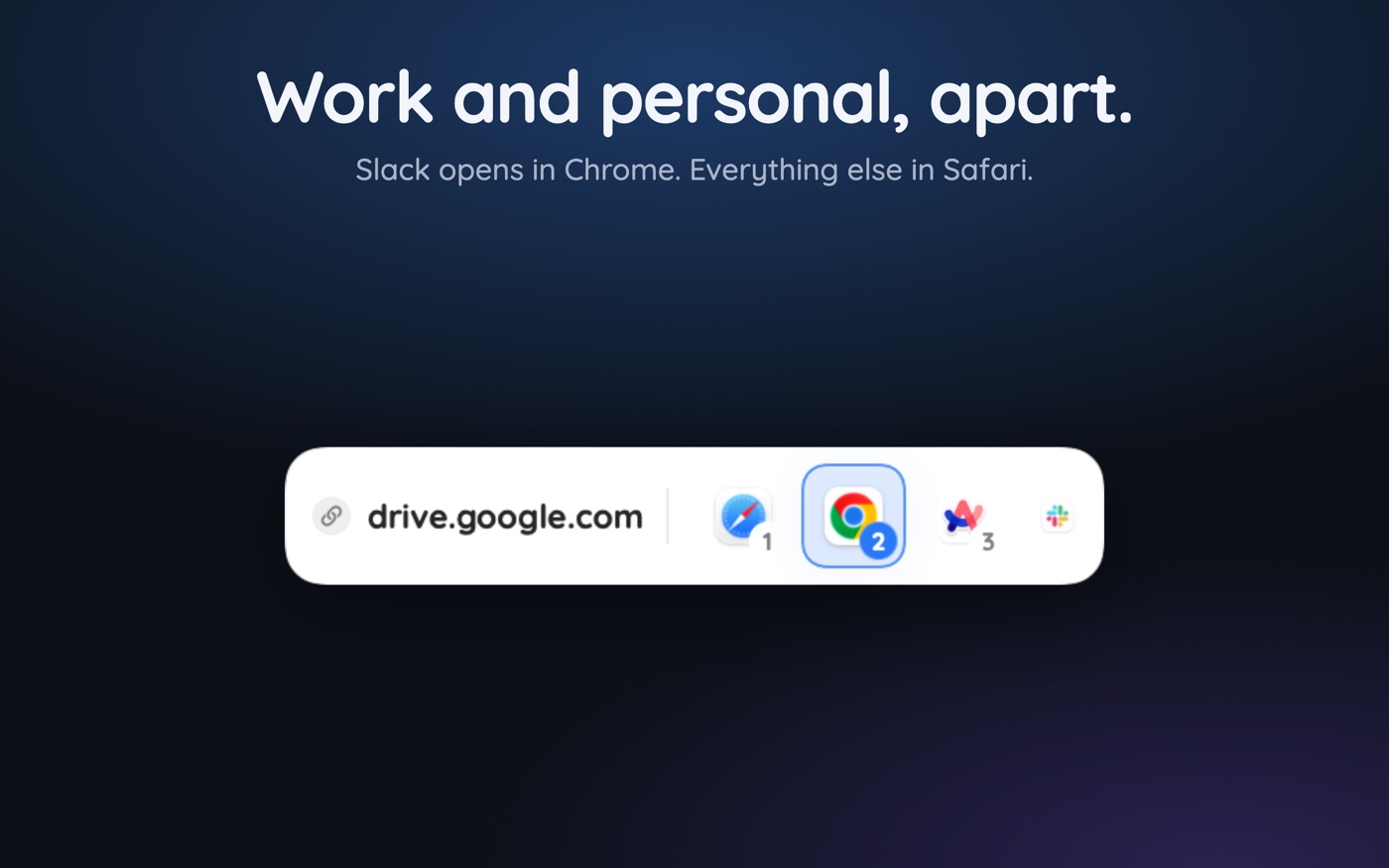
Roles only hold if links respect them, and macOS sends them all to a single handler. The fix is to put a router in that slot with two kinds of rule. Site rules match the destination: company domain to the work profile, meet.google.com to the profile owning the account, localhost to the development browser. Source rules match the sending app: everything from the work chat app goes to work.
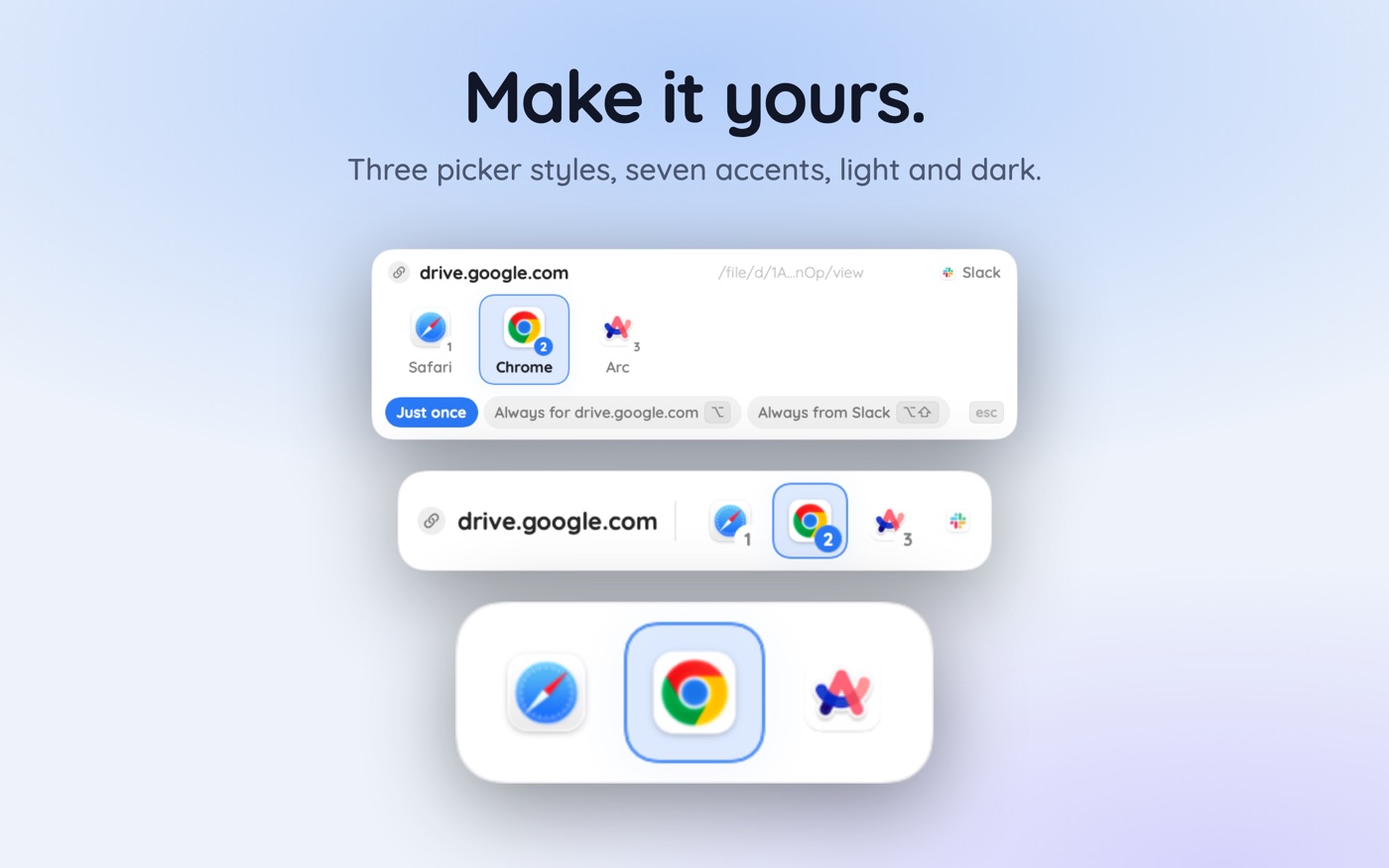
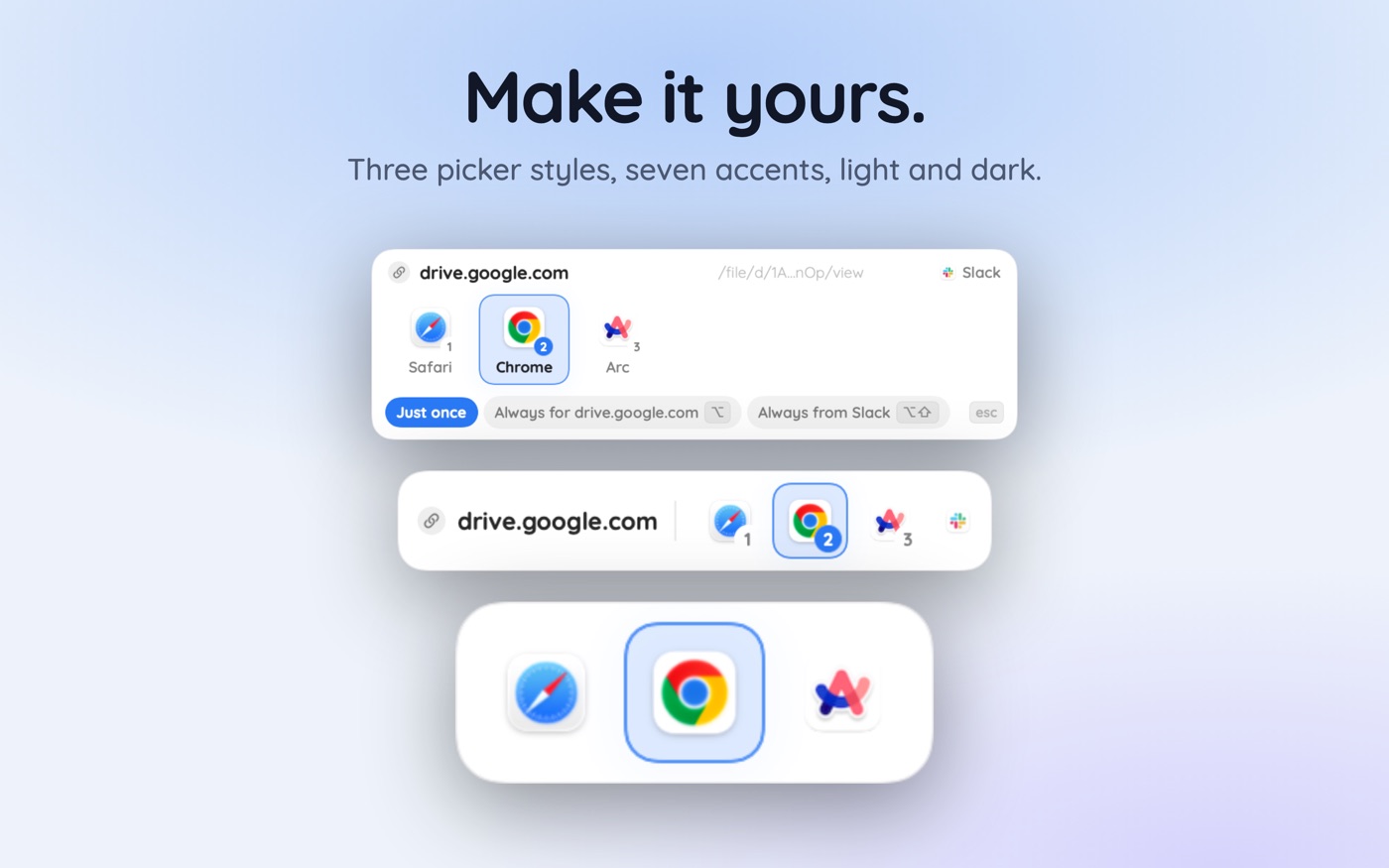
Source rules are underestimated. A shortened link tells you nothing about its destination, but the app it arrived in tells you almost everything about its context. With a browser picker like Hoplink as the default handler, Option while choosing turns that choice into a site rule and Option-Shift into a rule for the sending app — so the system builds itself out of decisions you were already making.
- Prompt on everything for a week, so you learn your real patterns rather than imagined ones.
- Promote each repeated decision to a rule the moment you notice you are repeating it.
- Add source rules for the apps that produce the most links: mail, chat, calendar.
- Leave the long tail unruled, so new sites ask rather than guessing wrong silently.
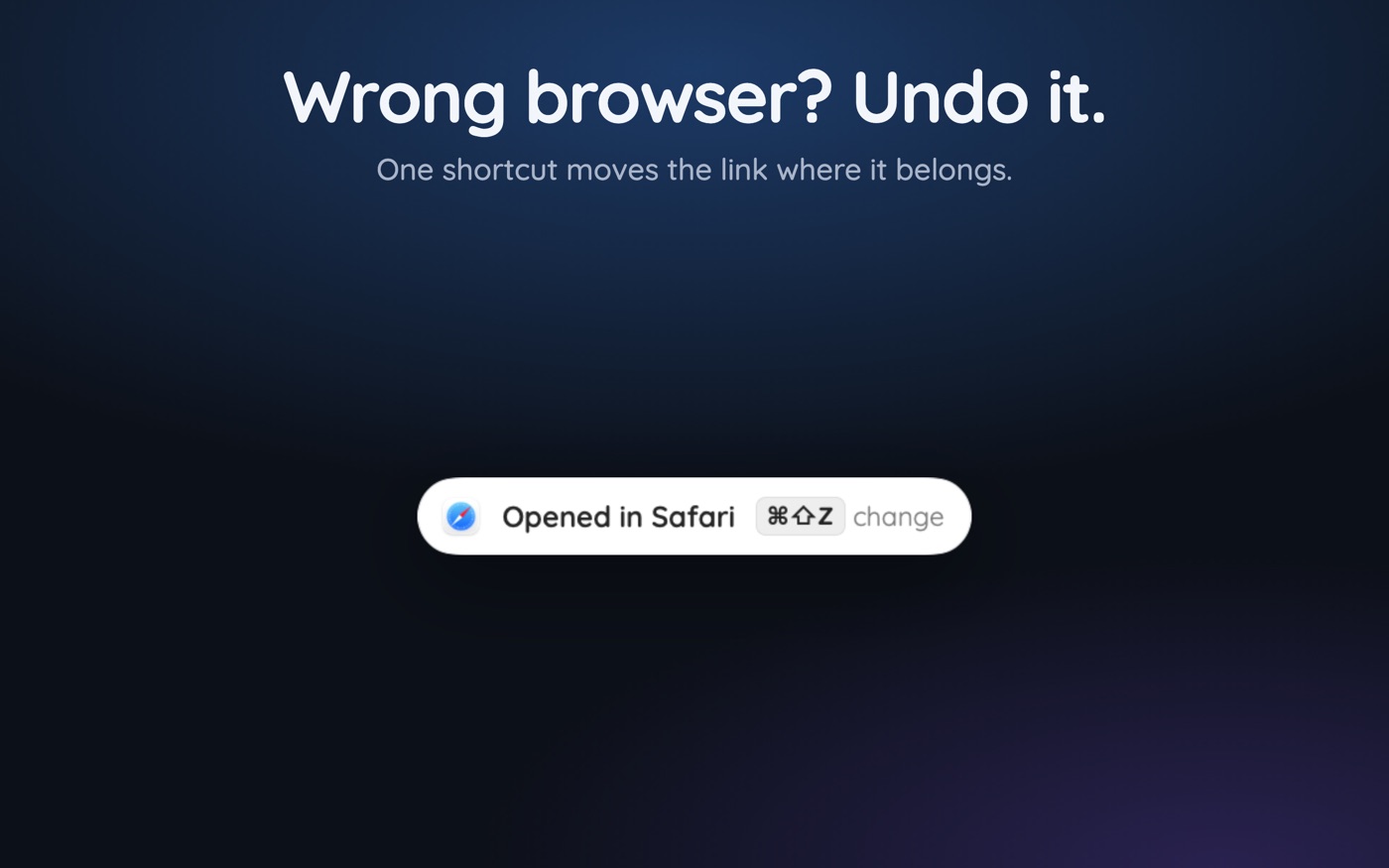
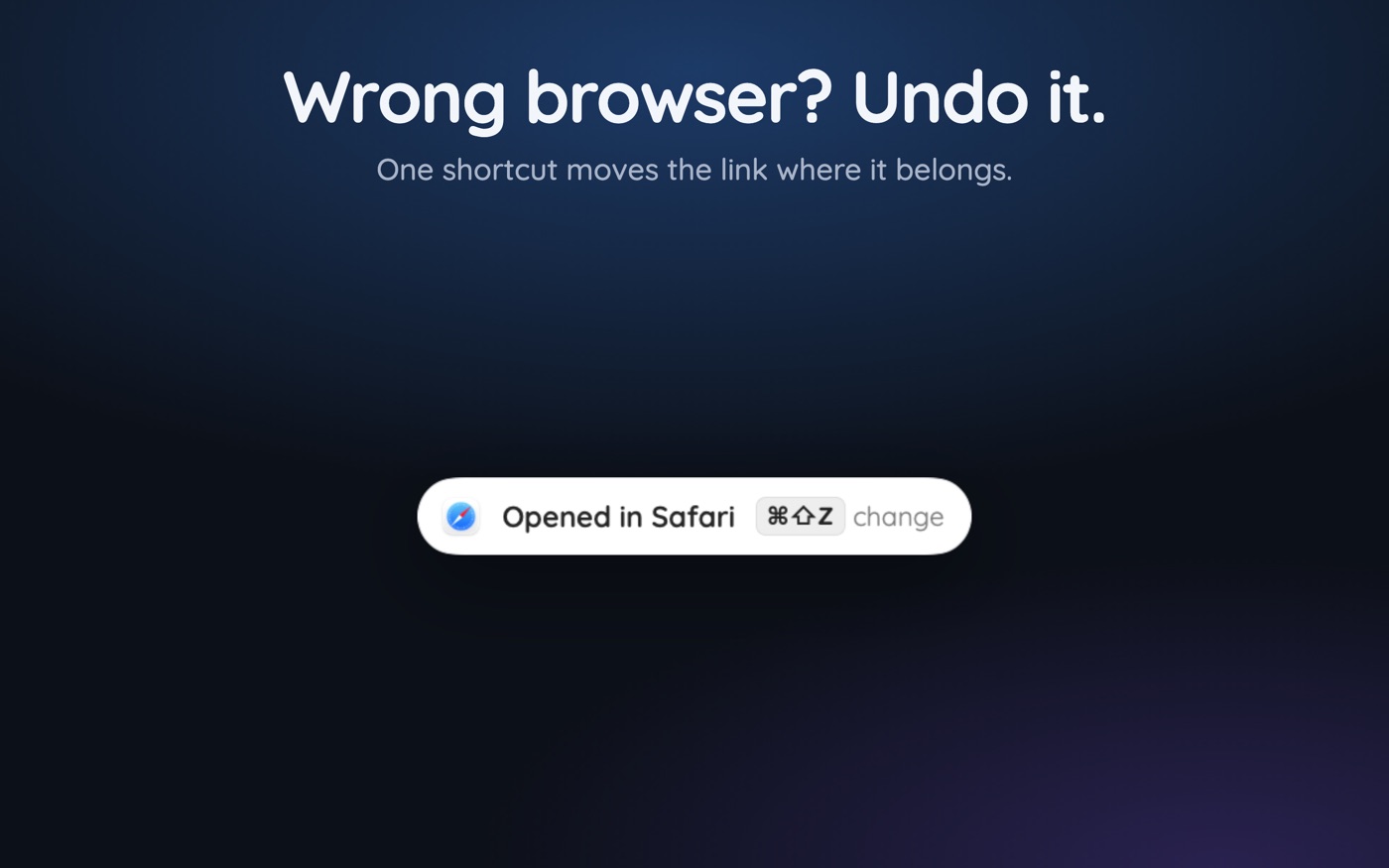
- Keep Cmd+Shift+Z in muscle memory to reopen a misrouted link elsewhere.
Why keep one browser truly clean?
Because opening a link as nobody is genuinely useful, and impossible if all four browsers hold a signed-in identity. A clean browser has no accounts and minimal extensions: the place for a link from an unfamiliar sender, a pricing page you would rather not have personalised, or a check on how your own site looks to a first-time visitor.
Keep it clean with three rules: never sign into anything, never install an unconsidered extension, and make it the destination for unknown senders. Private windows are a partial substitute — Cmd+Shift+N in Chrome and Safari, Cmd+Shift+P in Firefox — but they inherit the browser's extensions and fingerprint.
It is also the natural home for the occasional cross-browser check, where opening a single link in a different browser is a per-link action rather than a rule.
How do you switch browsers without the mouse?
A role system creates one new cost: you move between apps more often. Set it up deliberately and switching context becomes a keystroke rather than a hunt through the Dock.
- Cmd+Tab cycles apps in recency order; hold Cmd and press Tab repeatedly to reach the third or fourth.
- Cmd+` cycles windows within the frontmost app — fastest between two windows of one browser.
- A Space per context. Move with Ctrl+Left and Ctrl+Right, and pin each browser by right-clicking its Dock icon and choosing Options → Assign To → This Desktop.
- A launcher. Cmd+Space, three letters, Return opens a named browser faster than any Dock click.
- Cmd+L then paste when a link has to move browsers by hand.
Assigning browsers to Spaces is the underrated one: context switching becomes a physical gesture, and the wrong-browser mistake becomes visible, because a window appears on a desktop where it does not belong. Combined with routing, you rarely switch manually at all.
Key takeaways
- Four browsers is not the problem — four browsers with no assigned role is. Give each exactly one job.
- Chrome profiles count as separate browsers here; treating them as one causes the account mix-ups.
- Keep passwords in one manager outside every browser, so the credential is never in the browser you are not in.
- Route by site and by source app: the sending app tells you the context a shortened URL never will.
- Keep one browser with no signed-in identity for unknown links and logged-out checks.
- Assign each browser to its own Space so the wrong browser becomes visibly wrong.
Skip the guesswork — scan it
Hoplink: every link, your choice — a browser picker for the mac.
Frequently asked questions
How many browsers should I actually run on a Mac?
Two is enough for most people — one work, one personal — with profiles handling any further split. A third, kept signed out entirely, earns its place if you often open links from unknown senders or need to check pages in a logged-out state.
Are Chrome profiles as good as separate browsers?
For identity separation, yes: profiles have their own cookies, history, extensions, and signed-in accounts. What they lack is a different rendering engine, so cross-browser testing still needs a genuinely different browser. For work and personal separation, profiles are entirely sufficient.
Where should passwords live if I use several browsers?
In one dedicated password manager outside the browsers, with the browser-native managers switched off. Storing credentials per browser guarantees the sign-in you need is in the one you are not currently in, which is the most common daily cost of running several.
How do I stop links opening in the wrong browser?
Put a link router in the default-browser slot and give it rules on two axes — the destination site and the app the link came from. Work chat links go to the work browser, personal mail links go to the personal one, without any decision at click time.
Does running four browsers slow down my Mac?
Idle Chromium browsers use real memory, so on an 8 GB machine it is noticeable. Quitting the ones outside your current context helps more than any tab-suspension extension, and assigning each browser to a Space makes it obvious which ones you left running.
Should I still keep Safari if I mainly use Chrome?
Usually yes, and give it a job rather than deleting it. Safari has the best battery life on Apple silicon and the tightest Handoff and iCloud Keychain integration, which makes it a natural home for personal browsing that continues on an iPhone.
Written by the Toscan Apps Team
We build AI identifier apps and test them against the real world daily — estate-sale furniture, garden soil, drawer-found seeds, lumber-yard offcuts, and houseplants included. Guides are checked against field references and refreshed as our models improve.