Outlook and Teams Links Opening in the Wrong Browser on Mac

Quick answer
Outlook and Teams carry their own link-handling preference that runs before the macOS default browser, and it usually points at Microsoft Edge. Change it in Outlook's General settings and in Teams under Files and links, or set both to the system default and let a link router decide per site.
You set Chrome as your Mac's default browser and it holds everywhere — except in the two apps you spend the day inside. Click a link in Outlook and Edge opens. Click one in Teams and Edge opens again, signed into an account you weren't using. Nothing is broken: Outlook links open in the wrong browser on Mac because Microsoft's apps consult their own preference before they ever ask macOS.
Below: where that preference lives in each app, why your IT department can lock it out of reach, and the system-level change that fixes Outlook, Teams, Word, and Excel together instead of one at a time.
Why do Outlook and Teams ignore my default browser?
Microsoft calls it link handling. Instead of asking macOS which application owns the `http` and `https` schemes, Outlook and Teams read an internal setting first, and when it says Microsoft Edge they hand the URL to Edge directly. The rationale is single sign-on: a SharePoint or Power BI link opened in Edge under a work profile arrives already authenticated instead of at a login wall. On a Mac where your work identity already lives in a specific Chrome profile, it is simply the wrong answer.
The behaviour is per application, not per account, which is why it feels arbitrary. Outlook obeys one switch, Teams obeys a different switch in a different pane. Changing the macOS setting that most default-browser guides point you at moves none of them, because the system default is the last layer consulted, not the first.
| Layer | What it decides | Who controls it |
|---|---|---|
| App link-handling setting | Where Outlook or Teams sends a clicked link | You, unless a policy overrides it |
| Managed configuration profile | Whether that setting is editable at all | Your IT administrator, via MDM |
| URL scheme handler | Which app claims msteams:// or ms-word:// | macOS Launch Services |
| macOS default browser | Where every well-behaved app sends links | You, in System Settings |
| Link router rules | Which browser or profile a specific site gets | You, per site or per source app |
Where is the Outlook setting that controls this?
The control sits in Outlook's own preferences rather than anywhere in macOS. The exact label shifts between builds, but the group is always in General and always about links.
- Open Outlook, then choose Outlook → Settings from the menu bar (Outlook → Preferences on legacy builds).
- Select General.
- Find the link-handling group — labelled Links, or Open links in, depending on your build.
- Switch it from Microsoft Edge to your default browser.
- Quit Outlook completely with Cmd+Q and relaunch; some builds only re-read the preference at startup.
If the option is missing, your build takes the choice from a policy rather than from you. If it is present but greyed out, the same is true. Either way, the setting worth having is default browser rather than any named browser — that hands the decision back to macOS, where you can make it once for every app.
How do I stop Teams opening links in Edge?
Teams keeps its equivalent somewhere else entirely, which is why people fix Outlook and assume they're done. In the current Teams desktop client, click your profile picture at the top right, choose Settings, open Files and links, and change the link open preference from Microsoft Edge to your default browser. On the classic client the same option lived under Settings → General.
Two kinds of Teams link behave differently. A plain web link pasted into a chat follows that preference. A *meeting* link of the form `https://teams.microsoft.com/l/meetup-join/...` is built to bounce: the page loads in a browser, then fires the `msteams://` scheme so the desktop client takes over. To skip the round trip, the link has to be aimed at the app instead — the same manoeuvre that makes Zoom and Meet links open in the right app.
What if the setting is greyed out or keeps resetting?
Managed Macs receive configuration profiles through MDM, and those profiles can write managed preferences into an app's own preference domain — `com.microsoft.Outlook` for Outlook, the equivalent domain for Teams. A managed value outranks anything you set in the interface, which is why the control appears locked, or appears editable and quietly snaps back within a day. Check what is enforced in System Settings → General → Device Management.
When it is genuinely locked, arguing with the app is a losing game. Ask IT whether the policy is deliberate — often it is a default that came with a baseline template — and route around it at the system level meanwhile.
- A macOS or Office update can re-seed the preference; re-check after major updates.
- Signing out and back into a work account reapplies that account's policy set.
- Reinstalling a browser re-registers its URL handlers, which can shift the system default too — see why your Mac drifts back to Safari.
How do I fix every Microsoft app at once?
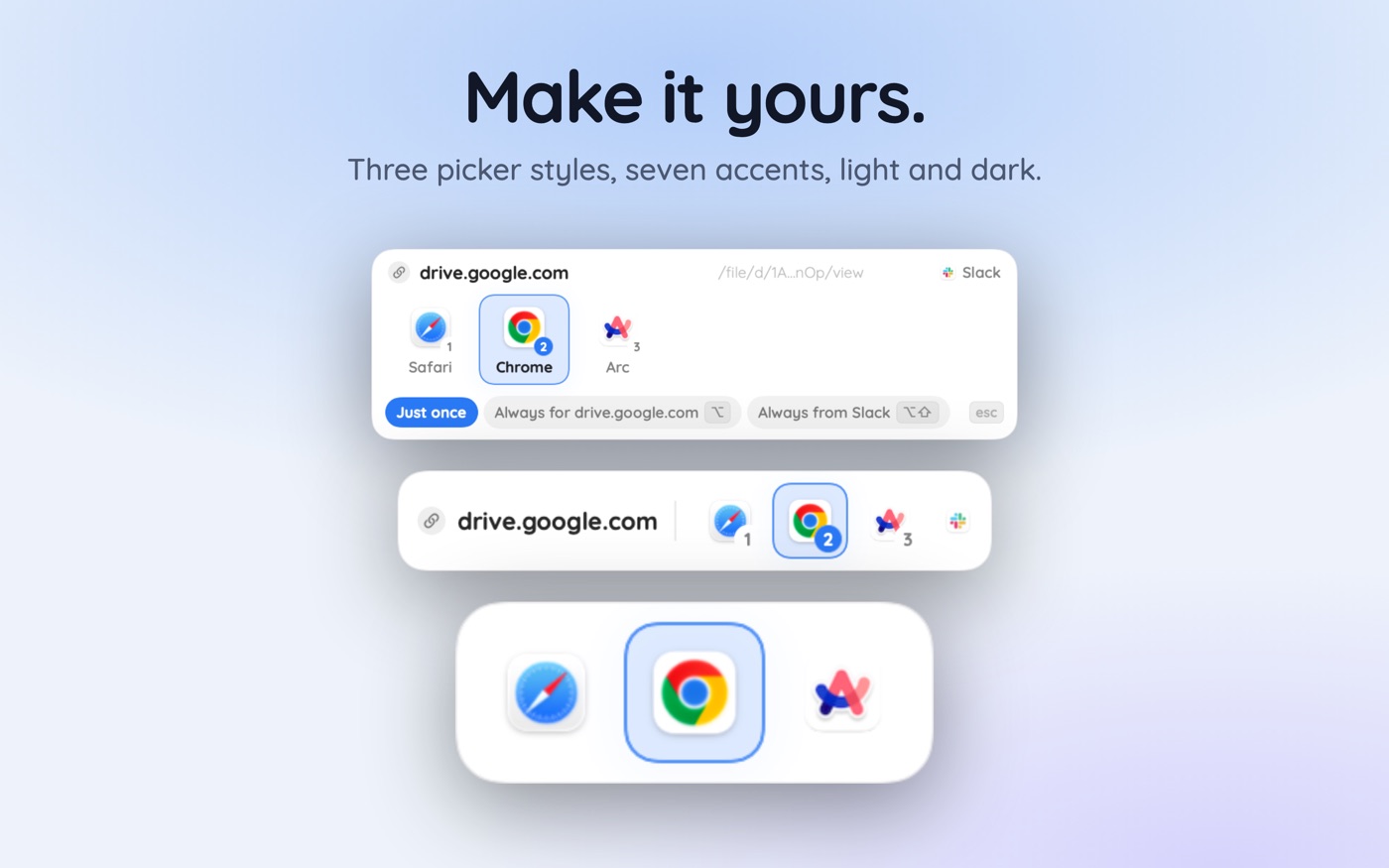
The durable fix is to stop treating each app as a separate problem. A link router registers itself as the Mac's handler for `http` and `https`, so every app that respects the system default sends links to one place. With a browser picker like Hoplink in that position, the Outlook link to a work SharePoint site goes to the work Chrome profile while the newsletter link in the same inbox goes to Safari.
One honest caveat: a router only sees links that reach the system. If Outlook's own setting still says Microsoft Edge, Outlook keeps bypassing everything. The sequence matters — set Outlook and Teams to default browser first, then let the router do the per-site work for Word, Excel, OneNote and the rest.
Rules are what make this quiet. Choosing a browser while holding Option turns that choice into a permanent rule for that site; Option and Shift together makes it a rule for links arriving from that app. After that, links route silently and a wrong route is undone from the toast with Cmd+Shift+Z — the same pattern that solves Slack links landing in the wrong browser.
What if I actually want some links in Edge?
Plenty of people do, and the per-site rule is why routing beats a single global switch. The genuine single sign-on benefit applies to a short list of hosts — your tenant's SharePoint, OneDrive, Power BI, the admin centre — and nothing else. Send those to Edge by domain and keep the convenience without surrendering every link in the inbox to it.
The same logic extends to profiles rather than browsers. If your work identity lives in a second Chrome profile, a rule can name that profile, so a tenant link arrives signed in without Edge involved at all — the approach in opening links in a specific Chrome profile.
Key takeaways
- Outlook and Teams read their own link-handling preference before macOS is asked, which is why the system default looks ignored.
- Outlook's control is in Settings → General; Teams keeps its own under Files and links. Fixing one does not fix the other.
- Set both to default browser rather than a named browser, so the decision returns to the system layer.
- A greyed-out or self-reverting setting means an MDM profile is enforcing it — route around it instead of fighting it.
- A system-level router fixes every other Mac app in one move, but only once the app-level overrides are off.
- Per-site rules keep real single sign-on for tenant hosts while sending everything else where you work.
Skip the guesswork — scan it
Hoplink: every link, your choice — a browser picker for the mac.
Frequently asked questions
Why do Outlook links open in Edge when Chrome is my default browser?
Because Outlook checks its own link-handling setting before it asks macOS which browser owns http and https. When that setting names Microsoft Edge, Outlook hands the URL straight to Edge and the system default is never consulted. Change it in Outlook → Settings → General.
Where is the Teams setting for opening links?
Click your profile picture in the Teams desktop app, choose Settings, then Files and links, and set the link open preference to your default browser. On the classic Teams client the same option sat under Settings → General. It is entirely separate from Outlook's setting.
Can my IT administrator stop me changing this?
Yes. Managed Macs receive configuration profiles through MDM that write managed preferences into the app's preference domain, and a managed value outranks anything you choose in the interface. The control then appears greyed out, or appears editable and reverts within a day.
Does changing the macOS default browser fix Outlook?
Only if Outlook's own setting is already set to default browser. The system default is the last layer consulted, not the first, so an app-level override silently wins. Set the app to default browser first, then the macOS choice — or a router — takes effect.
Will a link router work if the app setting still says Edge?
No. A router only sees links that reach the system handler for http and https, and an app-level override bypasses that entirely. Set Outlook and Teams to default browser first; the router then covers those apps along with every other app on the Mac.
How do I keep SharePoint in Edge but send everything else elsewhere?
Use a per-site rule rather than a global switch. Route your tenant's SharePoint, OneDrive, and admin-centre domains to Edge so single sign-on still works, and let every other link go to your normal browser. Rules make that distinction; one default-browser setting cannot.
Written by the Toscan Apps Team
We build AI identifier apps and test them against the real world daily — estate-sale furniture, garden soil, drawer-found seeds, lumber-yard offcuts, and houseplants included. Guides are checked against field references and refreshed as our models improve.