How to Open Links in a Specific Chrome Profile on Mac
Quick answer
Chrome opens external links in the last-focused profile window, and macOS has no per-profile default browser. To target a profile, launch Chrome with the --profile-directory flag and the profile's folder name (Default, Profile 1, Profile 2), which you can find in chrome://version or in the Local State file. Rule-based routing automates it.
Chrome profiles are the cleanest way to keep two Google accounts apart — separate cookies, bookmarks, extensions and sign-in state in one browser. They work perfectly until a link arrives from outside Chrome. Then it lands in whichever profile window you touched last, roughly a coin flip, and you are staring at a work document loaded under your personal account.
The fix is a launch flag Chrome has supported for years, plus knowing that profile *folder* names have nothing to do with the names you gave them. This guide covers both, why macOS cannot solve it at the system level, and how to open links in a specific Chrome profile without typing a command each time.
Why does Chrome open links in the wrong profile?
Because macOS and Chrome disagree about the unit of identity. To macOS, Chrome is one application with one bundle identifier — com.google.Chrome — and Launch Services routes http and https links to that bundle. Profiles are invisible at that layer; the system has no vocabulary for them.
Chrome then decides which of its windows gets the URL, and its rule is rarely what you want: the link goes to the most recently focused profile window, or, if Chrome is closed, to the profile active when it quit. Which profile a link opens in is decided by what you were reading five minutes ago.
- Personal window focused last → the work link opens in personal.
- Chrome closed with the work profile active → personal links open in work.
- Windows open across several profiles → the most recently clicked wins.
How do you find your Chrome profile folder names?
This is the step that trips people up. The names in Chrome's profile switcher are display labels stored inside Chrome. The folders on disk are numbered in creation order and never renamed, so the profile you call 'Work' may be the directory 'Profile 2'. Every command below needs the folder name.
| Folder name on disk | Typically | Created when |
|---|---|---|
| Default | The first profile you ever used | Chrome's first launch |
| Profile 1 | The second profile you added | First Add profile |
| Profile 2 | The third profile you added | Second Add profile |
| Profile 3 and up | Each later profile, in creation order | Deleted slots are never reused |
| Guest Profile | The Guest window, not a real profile | First Guest use |
Two ways to map labels to folders. Quick: open the window whose profile you want, go to chrome://version, and read the Profile Path row — it ends in the folder name. Complete: Chrome keeps the mapping in ~/Library/Application Support/Google/Chrome/Local State, under profile.info_cache, where each key is a folder name and each entry's 'name' field is the label.
- List every profile at once: jq '.profile.info_cache | to_entries | map({folder: .key, name: .value.name})' ~/Library/Application\ Support/Google/Chrome/Local\ State
- Or open the Chrome window you care about and read Profile Path at chrome://version.
How do you open a link in a specific Chrome profile from the command line?
Use the --profile-directory flag with the folder name, calling the Chrome binary directly. That detail matters: 'open -a' passes arguments only when it launches a new process, so with Chrome already running the flag is silently dropped and you are back to last-focused-window behaviour. Invoking the executable inside the bundle forwards the request with the profile intact:
- '/Applications/Google Chrome.app/Contents/MacOS/Google Chrome' --profile-directory='Profile 1' https://example.com
- '/Applications/Google Chrome.app/Contents/MacOS/Google Chrome' --profile-directory='Default' https://example.com
- Append & to get your shell prompt back immediately.
A shell function per profile makes this liveable, and the same command is what a Shortcuts 'Run Shell Script' action or a Raycast script calls under the hood. It composes with the other command-line link tricks.
Can you set a Chrome profile as the default browser?
No, and it is worth understanding why, because a lot of time gets lost trying. macOS stores the default handler for http and https as a bundle identifier — a single app. A profile is not an app: no bundle, no Info.plist, no identifier. There is nothing for Launch Services to point at, so the dropdown could not list profiles even in principle.
The usual workaround is a tiny wrapper app — AppleScript or Automator running the --profile-directory command — which works for launching. Making that wrapper the system default is harder: an app only appears in the dropdown if its Info.plist declares it a handler for the http and https schemes, which means editing the bundle by hand and re-registering it. Workable, but a lot of maintenance for a routing rule.
- Chrome's 'Set as default browser' button sets Chrome, never one profile.
- Chrome's Create Shortcut feature makes site-specific apps, not link handlers.
- The last profile you looked at wins unless something passes the flag explicitly.
How do you route links to the right Chrome profile automatically?
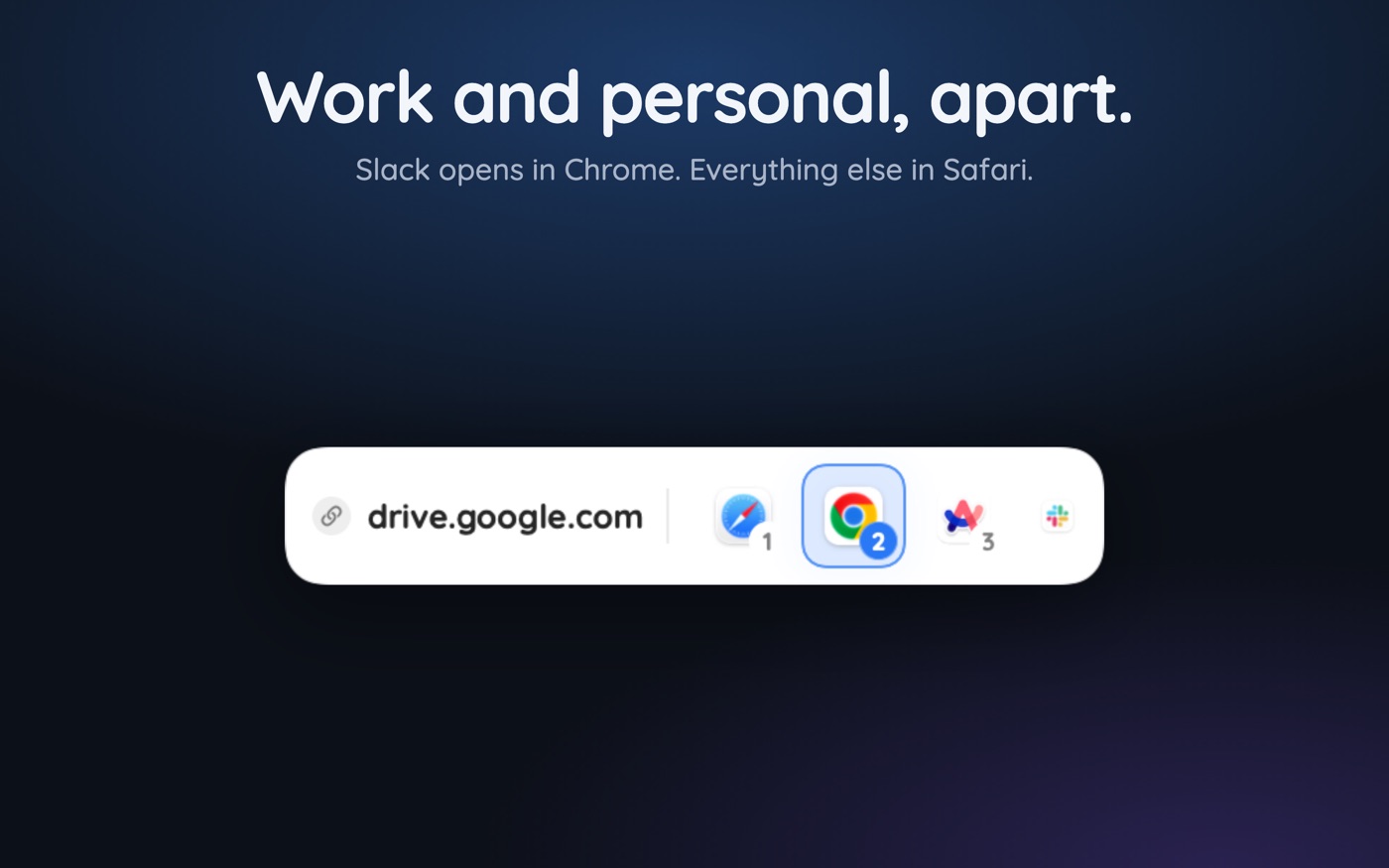
Put a router in front of Chrome. A picker registers as the single macOS default browser — the thing Launch Services *can* point at — receives every link, and launches Chrome with the correct --profile-directory flag. From Chrome's side it is an ordinary flagged launch; from yours, the link lands in the right profile.
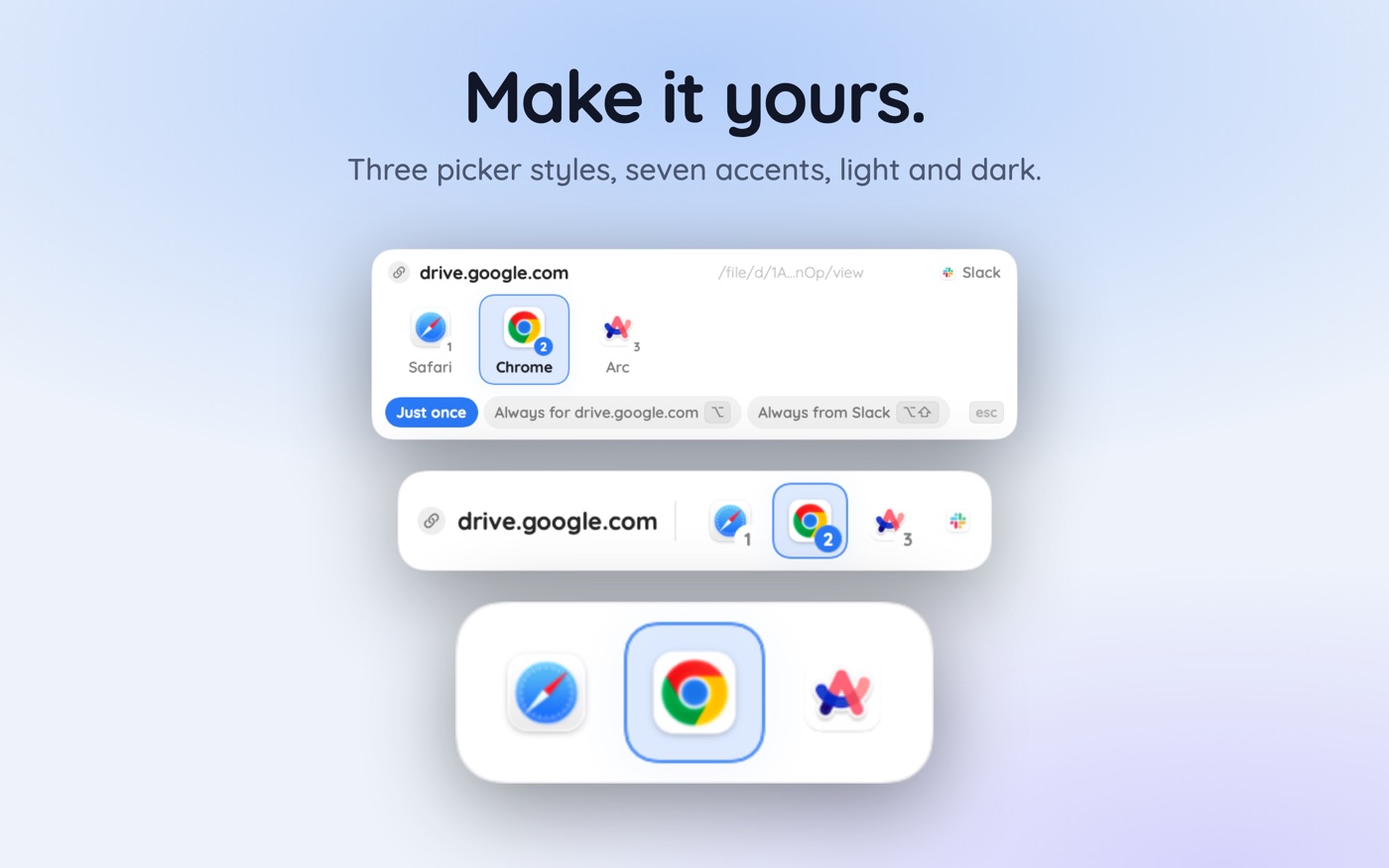
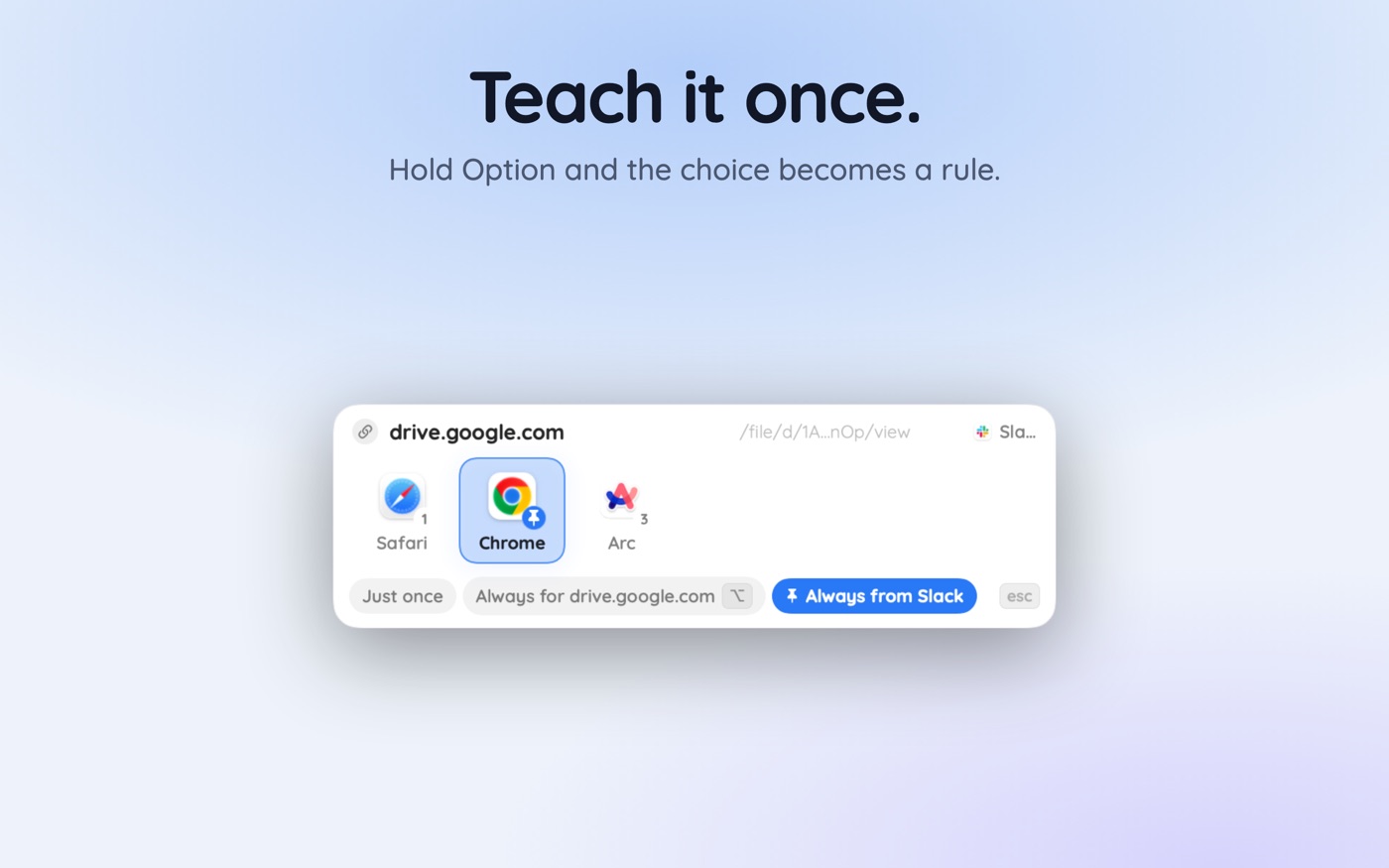
With a browser picker like Hoplink, each Chrome profile appears as its own entry alongside Safari and Firefox, so choosing 'Chrome — Work' is the same gesture as choosing any browser. Hold Option and that profile becomes the permanent rule for the current site; hold Option and Shift and it becomes the rule for the app the link came from.
- Map labels to folder names once at chrome://version.
- Set the picker as the default browser in System Settings › Desktop & Dock.
- Click a work link and Option-click the work profile — that domain is now bound.
- Option-Shift-click the same profile from a Slack link to bind the whole app, as in the Slack fix.
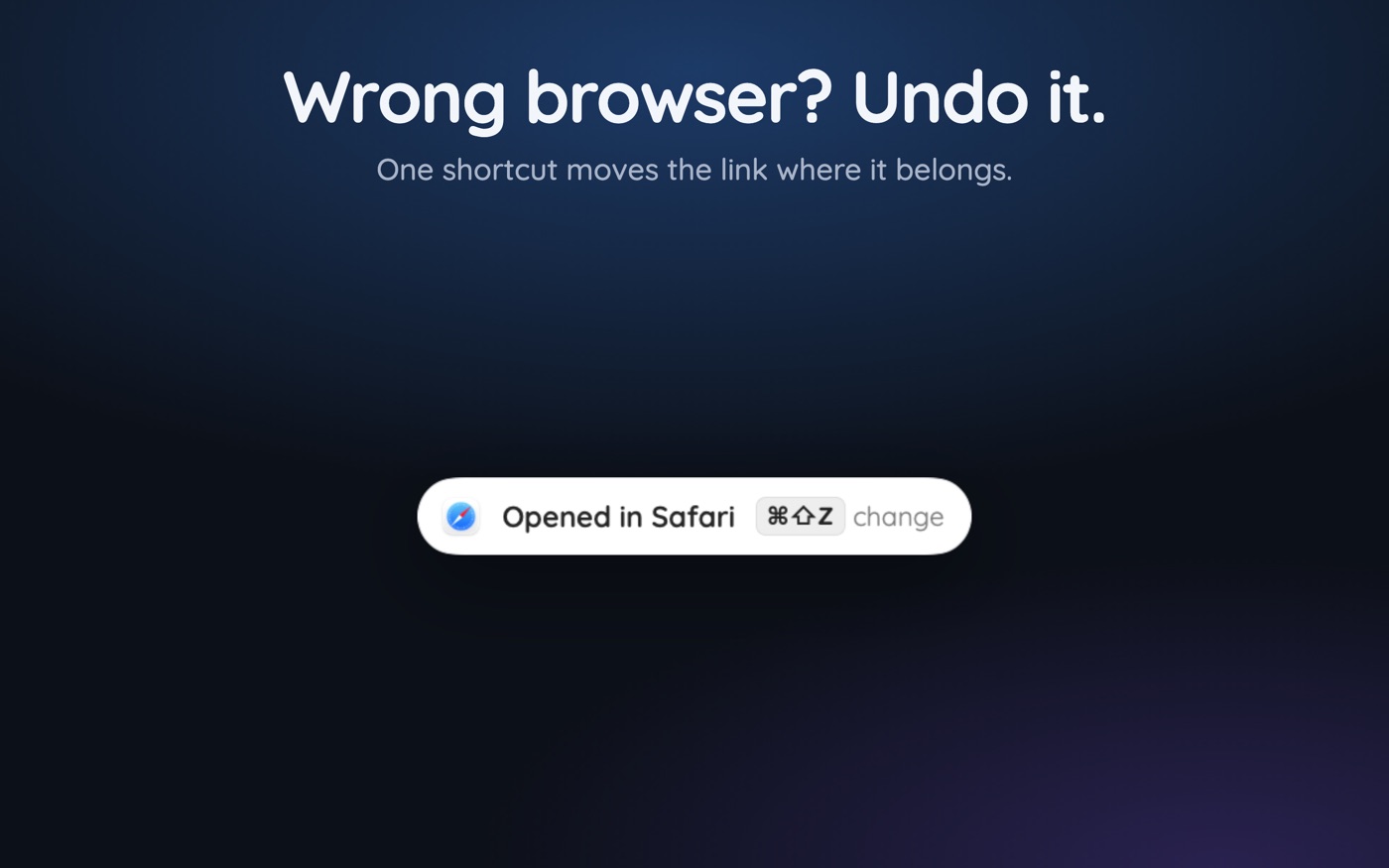
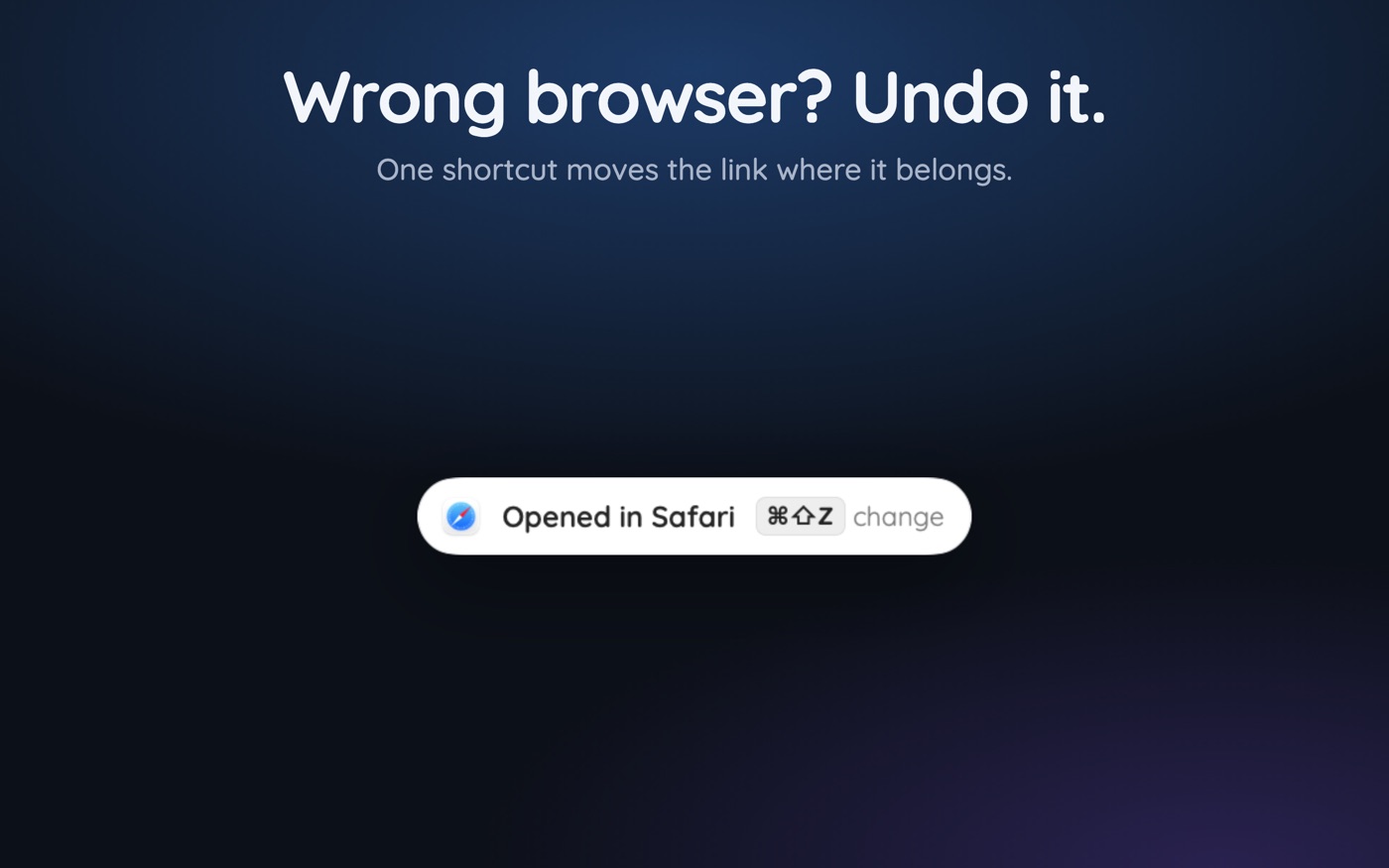
- Command-Shift-Z on the toast undoes a route that went to the wrong profile.
A handful of rules covers the realistic cases: company domain and internal tools to the work profile, personal mail and shopping to the personal one, everything else left to ask. That makes profiles behave the way people assumed they already did — and it is the piece that makes keeping work and personal browsing separate hold up over months.
Do Firefox and Edge have the same problem?
Edge does, identically — it is Chromium, takes the same --profile-directory flag, and keeps the same Local State structure at ~/Library/Application Support/Microsoft Edge.
Firefox differs. Its profiles are selected with -P 'name' or --profile /path/to/profile, using the name you chose rather than a numbered folder, and you can inspect them at about:profiles. Firefox also has Container Tabs, which isolate cookies *within* one profile — but containers are not addressable from outside Firefox, so an incoming link cannot be aimed at one. For external links, separate profiles remain the mechanism.
Key takeaways
- Chrome sends external links to the last-focused profile window — that is the whole cause.
- Display names are not folder names: folders are Default, Profile 1, Profile 2, in creation order.
- Find the mapping at chrome://version (Profile Path) or in profile.info_cache inside Local State.
- Target a profile by calling the Chrome binary directly with --profile-directory='Profile 1'.
- macOS cannot make a profile the default browser — Launch Services only points at whole apps.
- A picker turns that flag into a per-site or per-app rule set with one Option-click.
Skip the guesswork — scan it
Hoplink: every link, your choice — a browser picker for the mac.
Frequently asked questions
How do I find my Chrome profile folder name on a Mac?
Open a window in the profile you want and go to chrome://version — the Profile Path row ends in the folder name, such as Default or Profile 2. To see them all at once, read profile.info_cache inside ~/Library/Application Support/Google/Chrome/Local State, where each key is a folder and each name field is its label.
Why does Chrome open links in my personal profile instead of work?
Chrome hands incoming links to the most recently focused profile window, or to the last active profile if it was closed. It has no way to know which account a link belongs to. Targeting a profile requires launching Chrome with a --profile-directory flag, manually or through a routing tool.
Can I set a Chrome profile as my default browser on macOS?
No. macOS stores the default handler as a bundle identifier, and a profile is not an app with its own bundle, so profiles cannot appear in that dropdown at all. The practical alternative is a router that becomes the default browser itself and then launches Chrome with the right profile flag.
Does --profile-directory work when Chrome is already running?
Yes, if you call the binary inside the app bundle rather than using 'open -a'. The open command passes arguments only when it launches a new process, so with Chrome already running the flag gets dropped silently. Calling /Applications/Google Chrome.app/Contents/MacOS/Google Chrome forwards the profile correctly every time.
Will renaming a Chrome profile change its folder name?
No. Renaming in Chrome's settings changes only the display label stored in Local State. The folder on disk keeps the name it was created with, permanently, which is why commands and scripts must use the folder name rather than whatever you happen to call the profile.
How do I open a link in a specific Firefox profile?
Firefox uses -P with the profile name, or --profile with a full path, rather than Chrome's numbered folders, and lists everything at about:profiles. Container Tabs isolate cookies within one profile but cannot be targeted from outside Firefox, so routing external links still needs separate profiles.
Written by the Toscan Apps Team
We build AI identifier apps and test them against the real world daily — estate-sale furniture, garden soil, drawer-found seeds, lumber-yard offcuts, and houseplants included. Guides are checked against field references and refreshed as our models improve.