How to Keep Work and Personal Browsing Separate on a Mac
Quick answer
Separate work and personal browsing on a Mac by choosing one of three levels: two different browsers (simplest), two profiles in one browser (convenient, weaker isolation), or two macOS user accounts (strongest, most friction). Whichever you pick, add link routing — otherwise every link you click from Slack or Mail lands in the wrong side.
One Mac, two lives. A work account and a personal one, a corporate SSO session and a personal password vault, bookmarks you'd rather colleagues never saw on a shared screen — and a browser treating all of it as one identity. The result is familiar: signed into the wrong account on a shared document, personal history in a work screen share, autofill offering your home address in a company form.
macOS offers exactly three mechanisms for keeping the two apart, differing enormously in strength and daily friction. This guide compares them, then covers the part that decides whether any of them survives a normal working week: what happens when you click a link.
What are the three ways to separate work and personal browsing?
| Strategy | Isolation | Daily friction | Best for |
|---|---|---|---|
| Two browsers | Full: cookies, extensions, passwords, history | Low — both in the Dock at once | Most people |
| Two profiles, one browser | Good: cookies, bookmarks, extensions | Lowest — one app, one switcher | Two accounts, same habits |
| Two macOS user accounts | Strongest: Keychain, Downloads, files, apps | High — switching, no shared windows | Regulated or shared devices |
| Private windows | Session only: nothing persists | Medium — no stay-signed-in | One-offs, not a system |
The fourth row is what people try first and what never lasts. Private windows isolate nothing durable — they are a way to be logged out, not logged in as someone else — so the moment a session must persist overnight you are back to the first three.
When should you use two separate browsers?
Two browsers is the default recommendation, and the reason is cognitive rather than technical: the boundary is visible. A different Dock icon, different window chrome, often a different colour. You always know which side you are on and cannot drift across without noticing — precisely the failure mode profiles suffer from.
It is also the strongest separation available without logging out of your Mac. Two browsers share nothing: different cookie jars, extension sets, password stores, histories and sync accounts. A monitoring extension or managed-browser policy applies to one and cannot see the other, and if you screen-share the work browser, none of your personal tabs or bookmarks exist in it.
- Pick two visually distinct browsers, so Mission Control tells them apart for you.
- Give each a fixed Dock position — muscle memory does the enforcement.
- Sign each into exactly one account; never add a second.
The cost is duplication: two extension sets, two sets of bookmarks, two update cycles. Managing several browsers is a smaller job than it sounds once each has one purpose.
When are two profiles in one browser enough?
Profiles are right when both identities live in the same ecosystem — two Google accounts, say — and you want the same extensions and habits on both sides. Chrome, Edge and Firefox all support them, separating cookies, bookmarks, extensions, history and sign-in state. For two Google accounts without account-switcher chaos, profiles beat two browsers.
The weakness is the boundary. Two profile windows of the same browser look nearly identical, share one Dock icon, and sit one Command-Backtick apart, so people end up in the wrong one. Chrome's per-profile avatar and theme colour help — a coloured title bar is the cheapest mistake-prevention available.
The harder weakness is link routing: Chrome hands every external link to whichever profile window you touched last, so a work document clicked from Slack routinely opens under your personal account. Opening links in a specific Chrome profile covers the flag and the folder-naming trap behind it. Unsolved, profiles separate everything except the thing that moves between them most.
When is a second macOS user account worth it?
When the separation has to survive more than good intentions. A second macOS user account isolates at the OS level: separate home folder, Keychain, Downloads, app preferences, iCloud sign-in and running processes. Nothing bleeds across, because the two sessions cannot see each other's files without explicit sharing.
Use it when the stakes justify the friction: confidential contract work, regulated industries, or a machine a family member sometimes uses. Fast user switching takes seconds and both sessions keep running — but they are genuinely separate, so you cannot drag a file between them or see both sets of apps at once.
- Enable it at System Settings › Control Centre › Fast User Switching.
- Each account needs its own browsers, its own default browser and its own routing rules.
- Shared files go through /Users/Shared — the one place both accounts reach.
- FileVault encrypts the whole disk, not per account — this is isolation, not extra encryption.
The honest test: if you would happily hand the unlocked Mac to a colleague while in your work session, two browsers is enough. If not, the second account is the answer.
Why does the separation keep leaking?
Because you don't only browse — you click. Links arrive constantly from outside whichever browser you designated: Slack, calendar invitations, Mail, Messages, Teams, a Terminal command, a PDF. Each hands the URL to macOS, which sends it to the single default browser you nominated, with no idea which side of your life it belongs to.
Set the default to the work browser and personal links start landing in a managed browser signed into your employer's account. Set it to personal and every work link hits an SSO login wall until you give up and sign the work account into the personal browser — at which point the separation is gone, undone by a hundred small conveniences rather than a decision. It is also why so many links end up in Safari on Macs where nobody chose Safari for anything.
How do you make a work and personal split actually hold?
Add the routing layer. A browser picker takes the macOS default browser slot and replaces that single global answer with a set of rules, acting on exactly the context macOS discards: which site the link points to, and which app it came from.
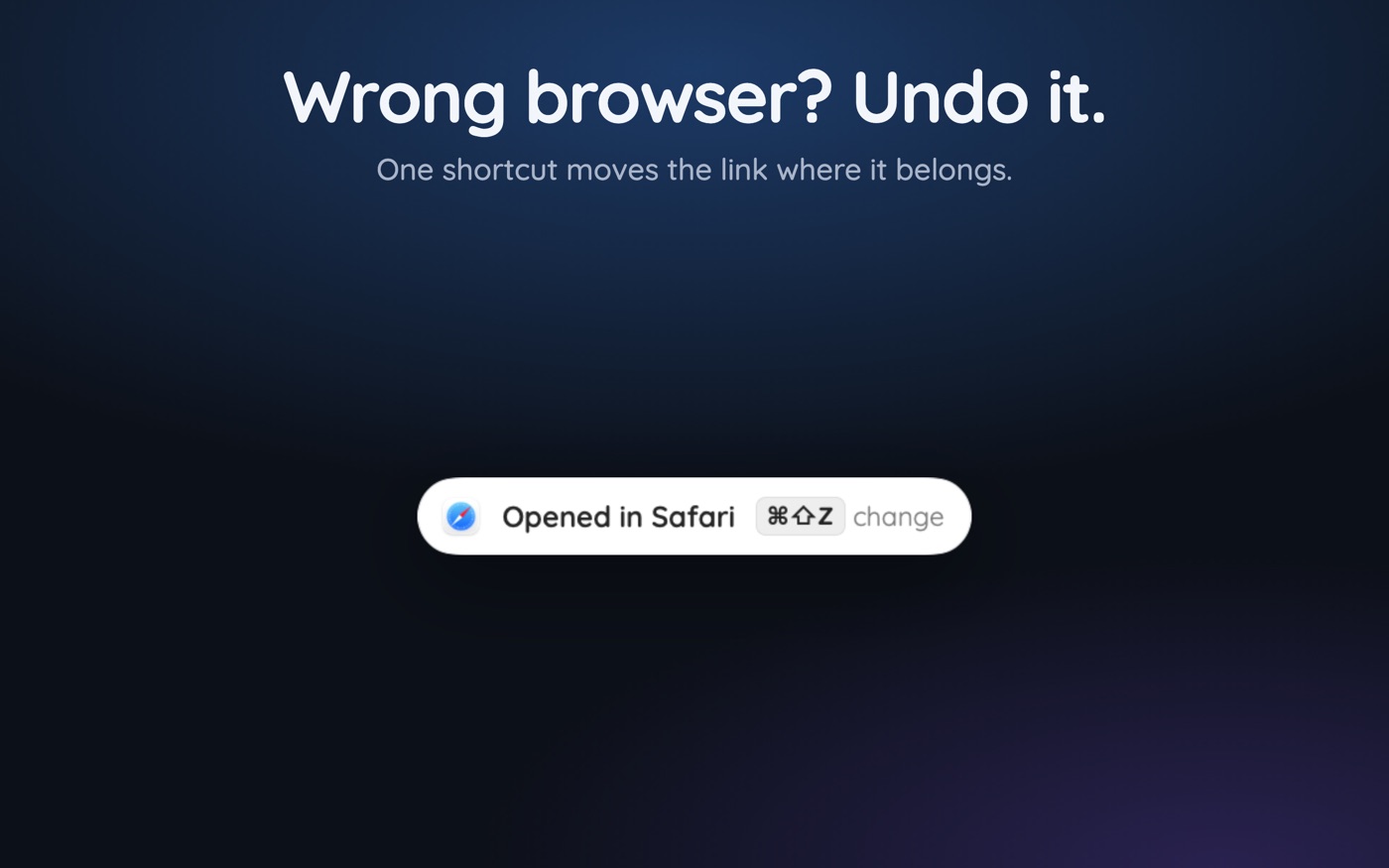
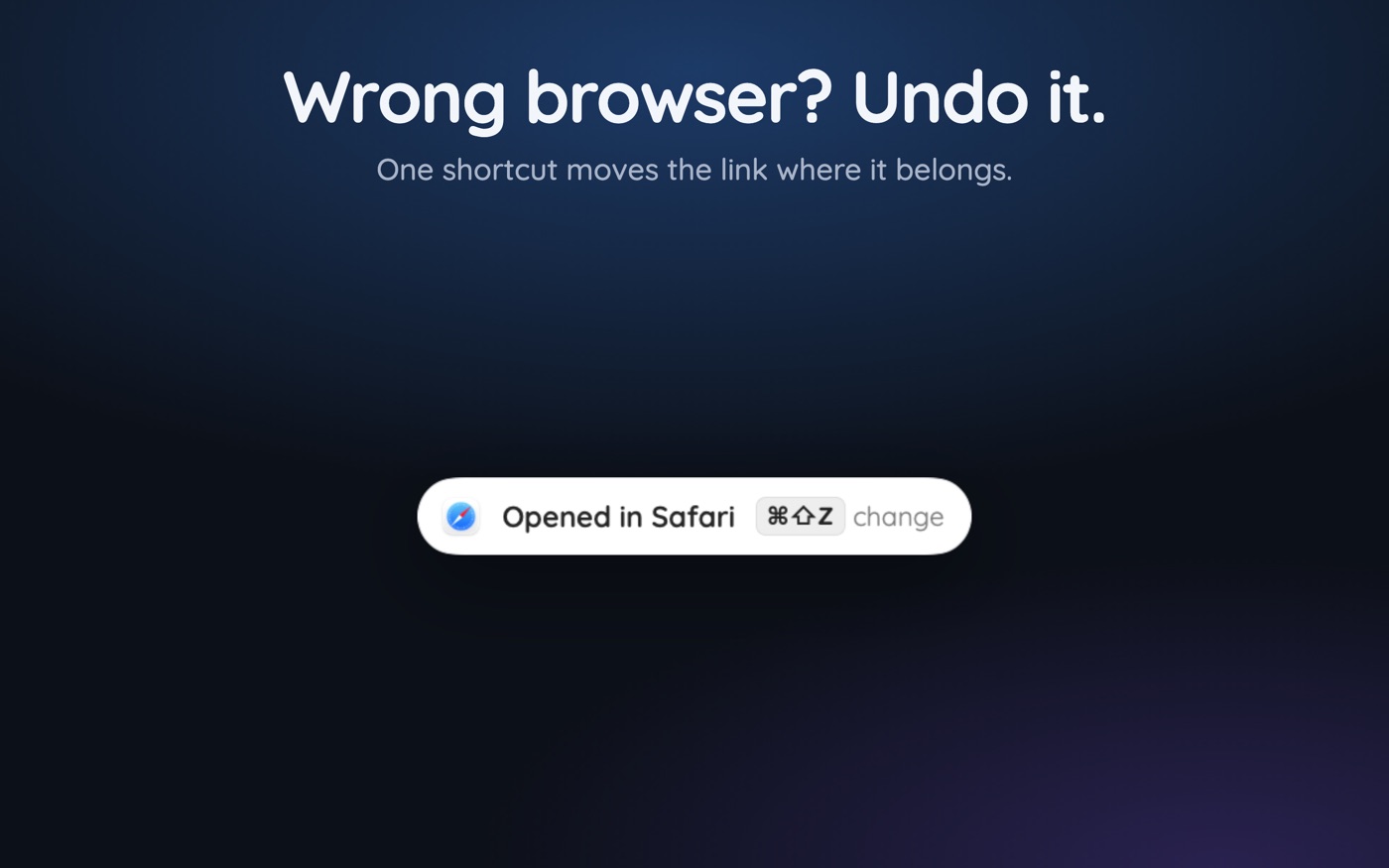
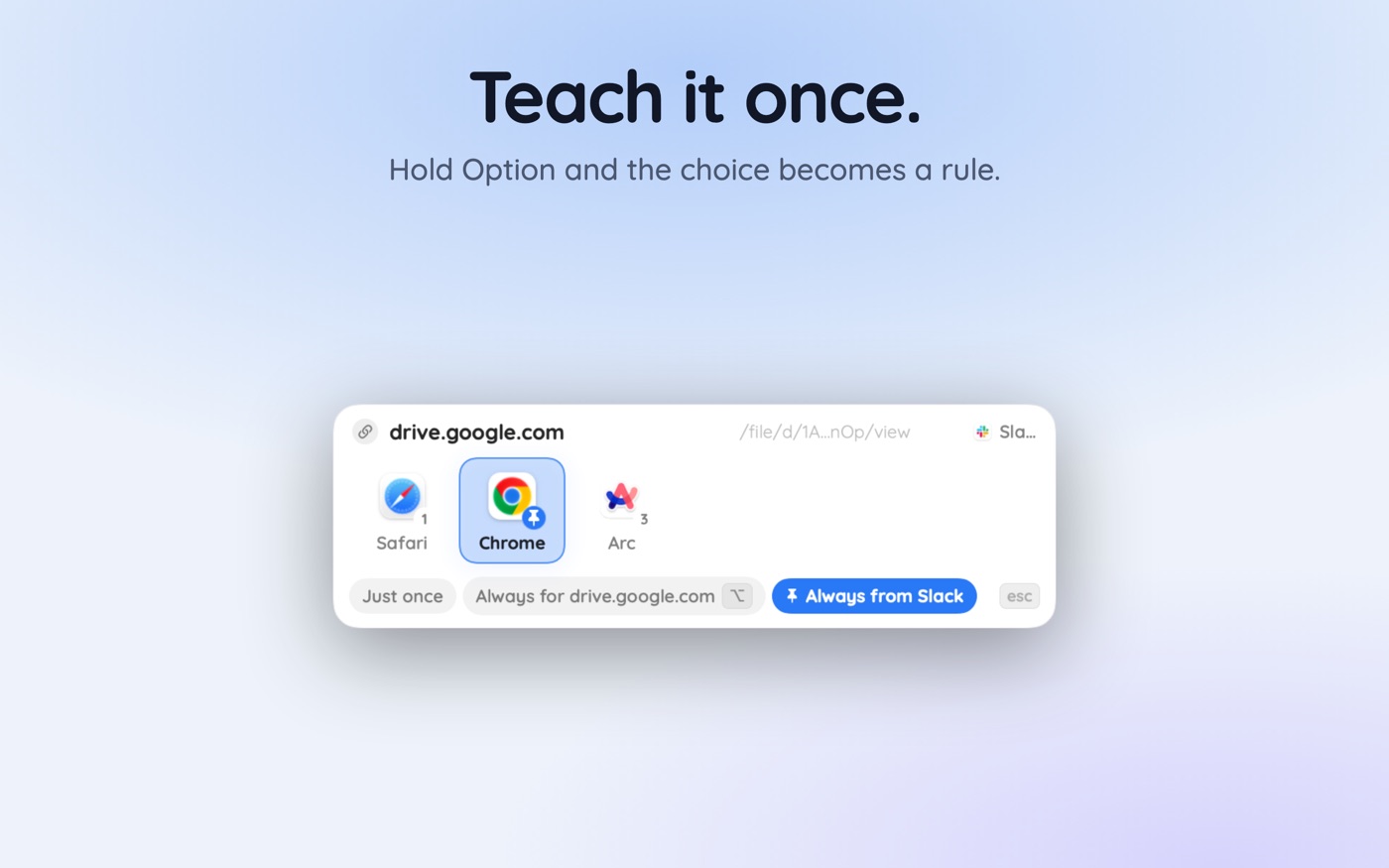
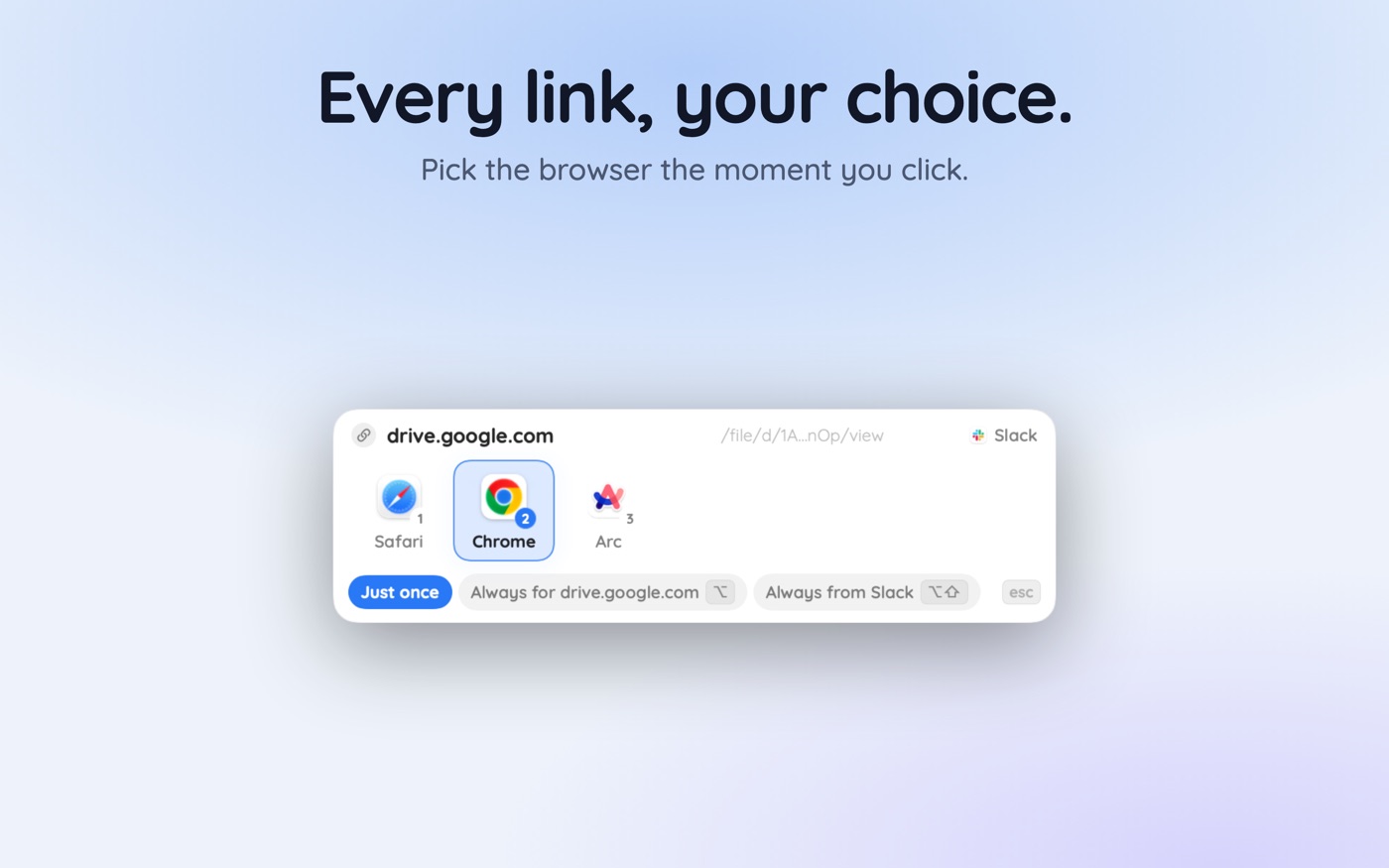
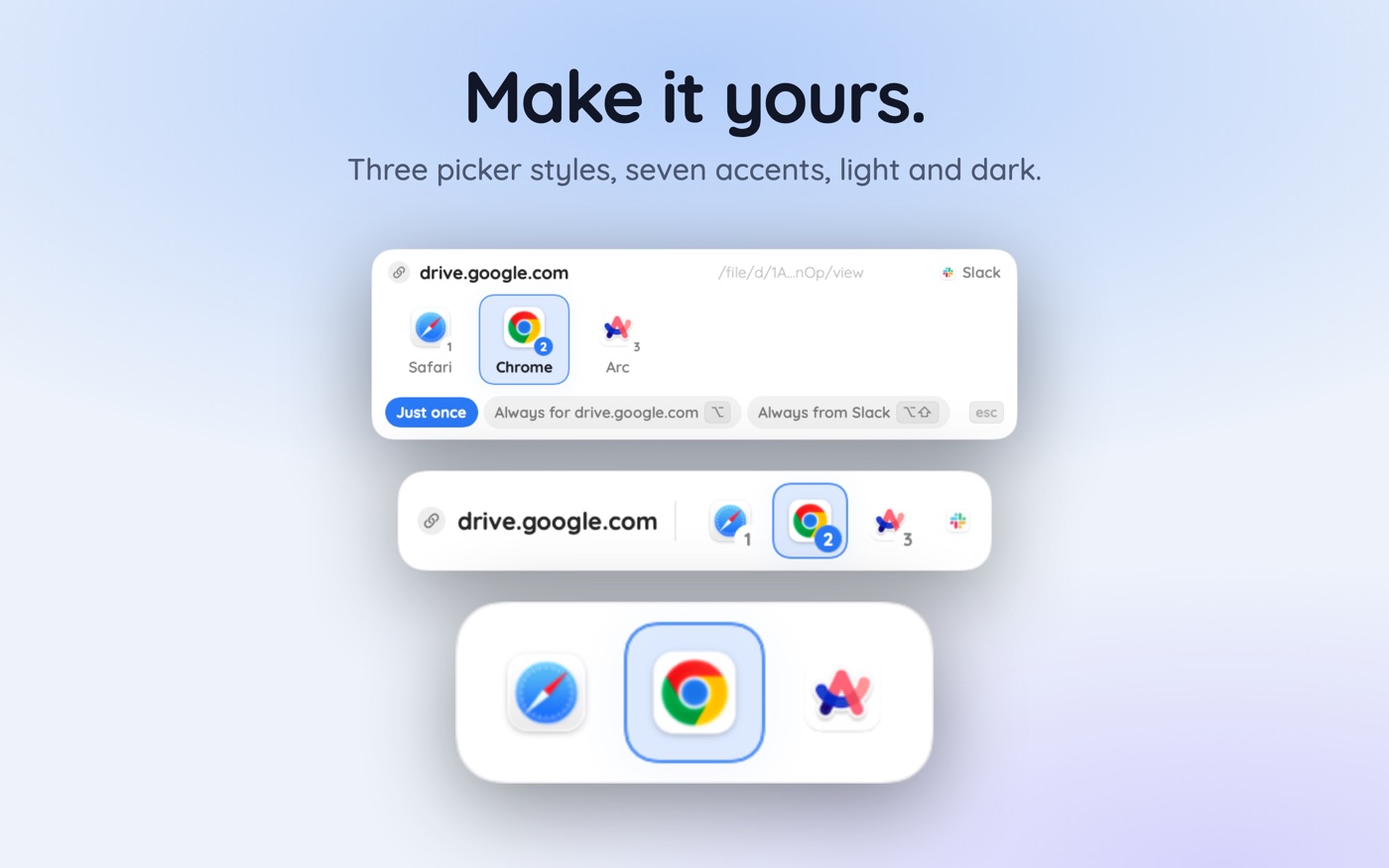
With a browser picker like Hoplink, a chooser appears under your cursor when you click a link, showing your installed browsers and Chrome profiles. Option-click to bind that website permanently; Option-Shift-click to bind the app the link came from. Rules route silently after that, and Command-Shift-Z on the toast undoes anything that went the wrong way. Nothing leaves the Mac — no account, no analytics — which matters, because a routing tool necessarily sees every link you click.
- Choose the strategy first — two browsers, two profiles, or two user accounts.
- Set the picker as your default browser in System Settings › Desktop & Dock.
- Bind Slack, Teams and Outlook to the work side with Option-Shift-click, as in the Slack fix.
- Bind your company domain and internal tools to the work side with Option-click.
- Bind personal mail, banking and shopping the same way, to the personal side.
- Leave everything else unruled, so unfamiliar links ask rather than guess.
That last instruction keeps the system honest. A setup with a rule for everything will silently misroute the first link that doesn't fit; one that still asks surfaces the decision when it matters. After a fortnight the picker appears a few times a day rather than constantly — and the split holds, because holding it no longer depends on you remembering. What a browser picker is covers the mechanics if the category is new.
Key takeaways
- Two browsers gives the strongest everyday separation and the most visible boundary.
- Two profiles suit two accounts in one ecosystem, but the boundary is easy to cross by accident.
- A second macOS account is real OS-level isolation, at the cost of switching and no shared windows.
- Private windows isolate a session, not an identity — never the long-term answer.
- Every strategy leaks at the same point: links clicked outside the browser.
- Per-site and per-app routing closes the leak; leave unfamiliar links unruled.
Skip the guesswork — scan it
Hoplink: every link, your choice — a browser picker for the mac.
Frequently asked questions
Should I use two browsers or two Chrome profiles for work and personal?
Two browsers if you want a boundary you can see — different icons, different windows, no drifting across by accident. Two profiles if both identities sit in the same ecosystem and you want identical extensions on each side. Profiles are more convenient; separate browsers are harder to cross accidentally.
Does a second macOS user account really keep work and personal separate?
Yes, more thoroughly than anything short of a second machine. Each account has its own home folder, Keychain, Downloads, app preferences and iCloud sign-in, and neither session reads the other's files. The cost is fast user switching instead of Command-Tab, with no shared windows or drag-and-drop between the two sides.
How do I stop work links opening in my personal browser?
Route on the source app. Bind Slack, Teams and Outlook to the work browser so their links always go there, and add per-site rules for your company domain and internal tools. The macOS default browser setting cannot express this, because it stores one browser for every link on the machine.
Is a private window enough to separate work and personal browsing?
No. Private windows discard everything when they close, which means being logged out rather than logged in as someone else. They are useful for a one-off check on another account, but nothing persists — no bookmarks, no stay-signed-in, no extension state — so they cannot carry a daily identity.
Can my employer see my personal browsing if it is in a different browser on the same Mac?
A managed browser policy or monitoring extension applies to the browser it is installed in, so a separate browser sits outside its reach. Device management installed at the OS level is a different matter and can be broader. If the Mac is employer-owned, check System Settings › General › Device Management and ask rather than assume.
What is the easiest first step to separating work and personal browsing?
Install a second browser, sign it into work only, and put it in a fixed Dock position. That takes ten minutes and fixes the account-switching problem immediately. Add link routing next, because until links are routed you will keep opening work documents in the personal browser without noticing.
Written by the Toscan Apps Team
We build AI identifier apps and test them against the real world daily — estate-sale furniture, garden soil, drawer-found seeds, lumber-yard offcuts, and houseplants included. Guides are checked against field references and refreshed as our models improve.